Word Search Personalization
The Word search option lets customers type in words that get hidden inside a grid of random letters, exactly like a classic word search puzzle, with each hidden word highlighted so it's easy to spot. It's the option to reach for when a design should feel like a personalized puzzle keepsake, a family's names, a couple's names, favorite things, tucked into a letter grid.
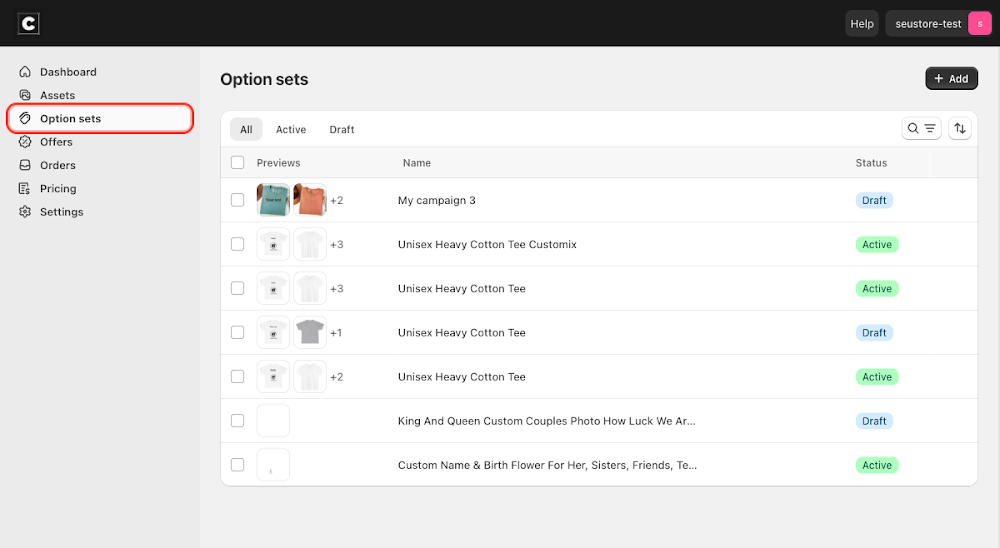
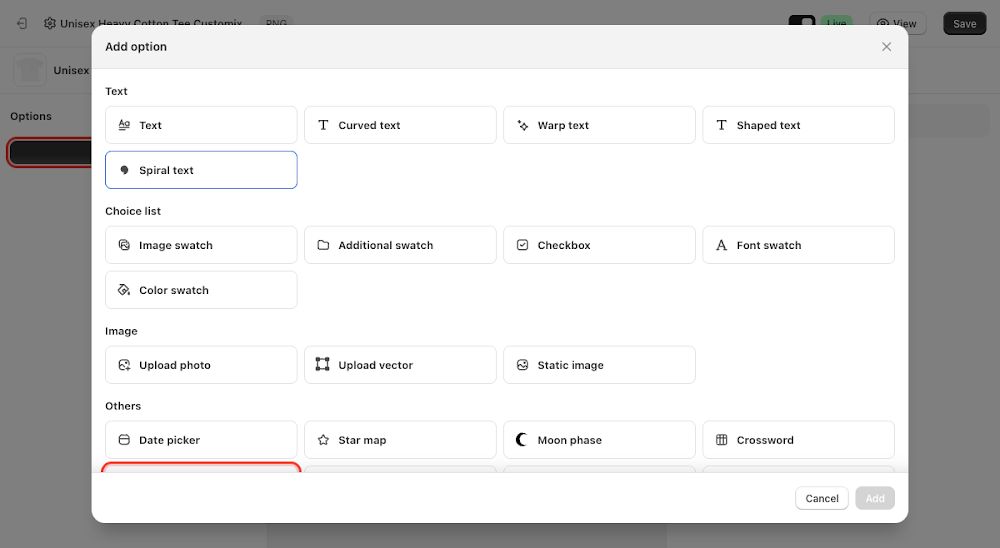
To add it, go to Option sets in the sidebar, open the option set for your product, click Add option, choose Word search under Others, then click Add.

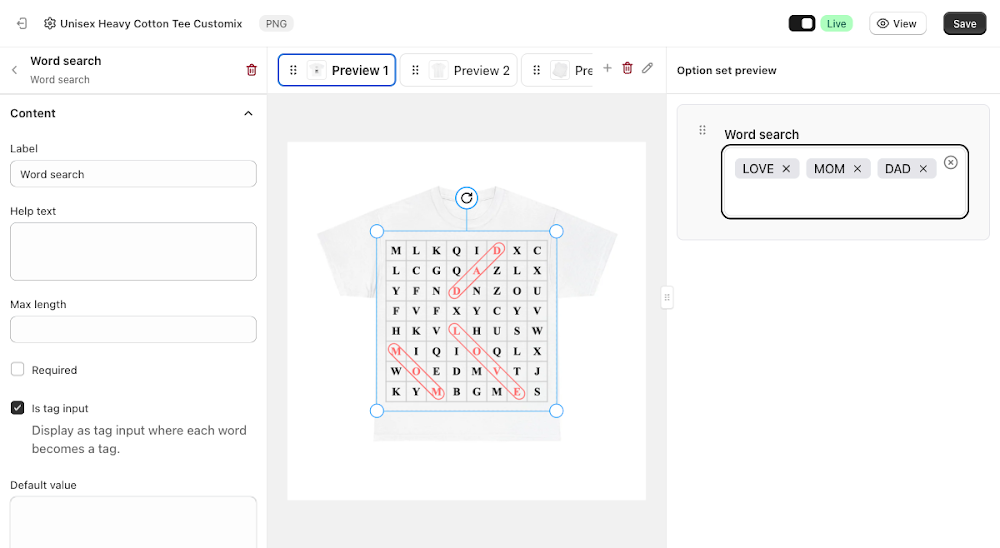
Content
- Label: the field name shown above the input, defaults to "Word search"
- Help text: optional guidance shown below the label
- Max length: caps how many characters the customer can enter in total
- Required: forces the customer to enter at least one word before they can complete the order
- Is tag input: ticked on by default, displays the field as a tag input where each word the customer types becomes its own removable tag, rather than one free-text box
- Default value: starting words shown before a customer edits them, entered as space-separated words, empty by default (unlike Crossword, which pre-fills "Your text")
- Recreate: regenerates the letter grid for the current words without changing them
- Allow customers to regenerate puzzle: adds a Regenerate button to the storefront so customers can reshuffle the grid themselves
Even with no words entered, the canvas already shows a full grid of random filler letters, since the puzzle needs a grid to exist before any words are hidden in it.
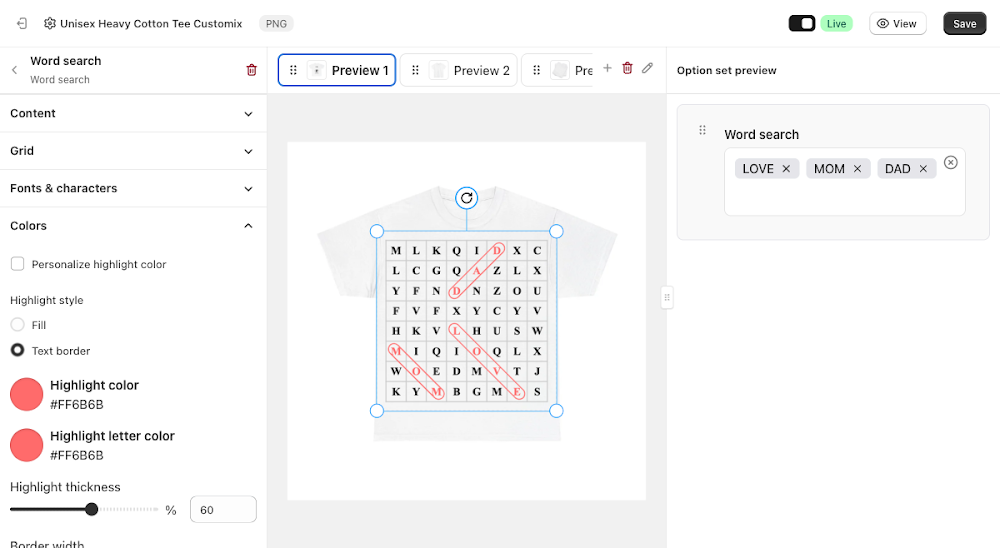
Typing words into the tag input shows the real mechanic: each word becomes a tag, and the canvas immediately redraws the grid with those words hidden inside (diagonally, across, or down) and circled so they're easy to find, like the answer key to a puzzle.
Grid
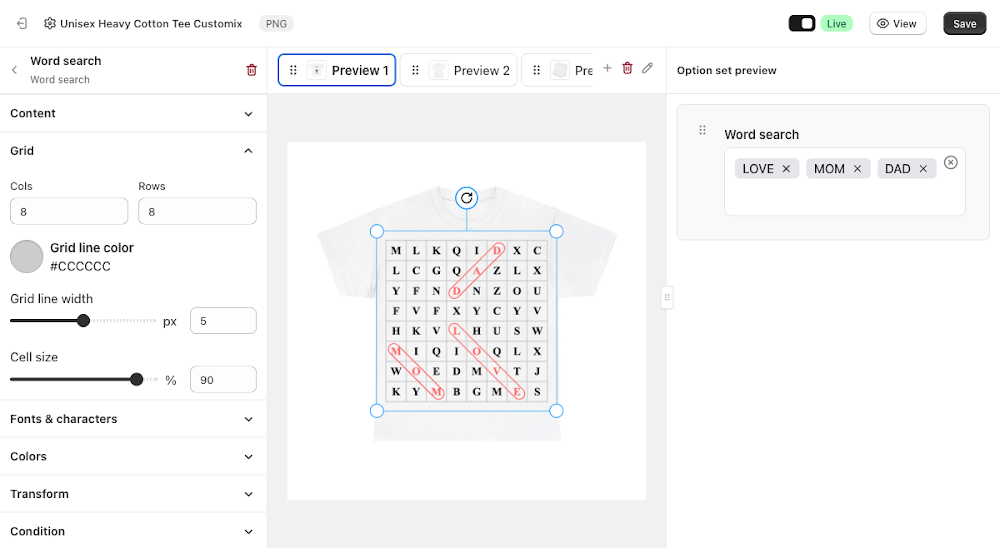
Controls the size and appearance of the letter grid itself.
- Cols / Rows: number of columns and rows in the grid, defaults to 8x8
- Grid line color: the color of the lines between cells
- Grid line width: line thickness in pixels
- Cell size: how large each cell renders, as a percentage
Fonts & characters
Controls the look of the letters filling the grid.
- Default font: search and pick a font for the grid letters
- Personalize font: lets the customer change the font themselves
- Font size: as a percentage of the cell
- Text color: the letter color, defaults to near-black

Colors
Controls how the hidden words are highlighted once placed in the grid.
- Personalize highlight color: lets the customer change the highlight color themselves
- Highlight style: choose Text border (default) to circle each hidden word with an outline, or Fill to cover it with a solid highlight bar instead
- Highlight color: the outline or fill color, defaults to a coral red
- Highlight letter color: the color of the letters within the highlight
- Highlight thickness: how bold the outline or fill renders, as a percentage
- Border width: outline thickness in pixels (only applies to the Text border style)

Transform
The standard Width, Height, X, Y, Skew X, Skew Y, alignment, flip, Opacity, and Rotation controls for positioning the puzzle on the canvas, the same Transform panel shared by other canvas-based option types.
Condition
Like most option types, Word search supports its own conditions, so you can show or hide it based on a selection elsewhere in the option set. See the Conditional Option Sets guide if you want to set that up.
📌 Don't forget to click Save once you're happy with the setup, and make sure the option set's status is Active (not Draft). Customers won't see the Word search option on your storefront until both are done.
Updated on: 17/07/2026
Thank you!