Additional Swatch Personalization
The Additional Swatch option lets customers pick from a set of named choices, where each choice comes from a folder in your Assets library instead of individual image files. It's the option to reach for when you need a simple picker, like a yes/no toggle, a size guide, or a style selector, that drives what else shows up on the product through Condition, rather than a swatch that changes the artwork on the canvas directly.
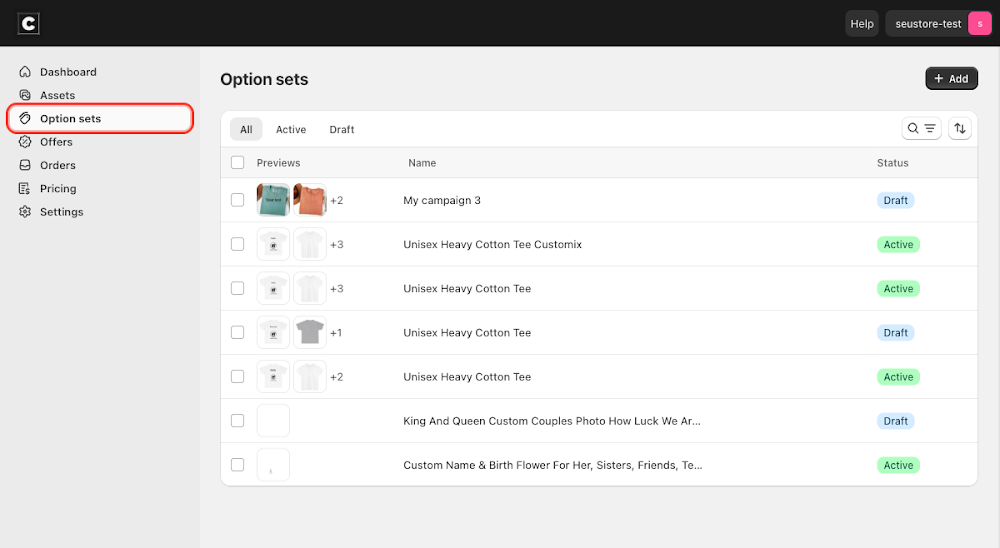
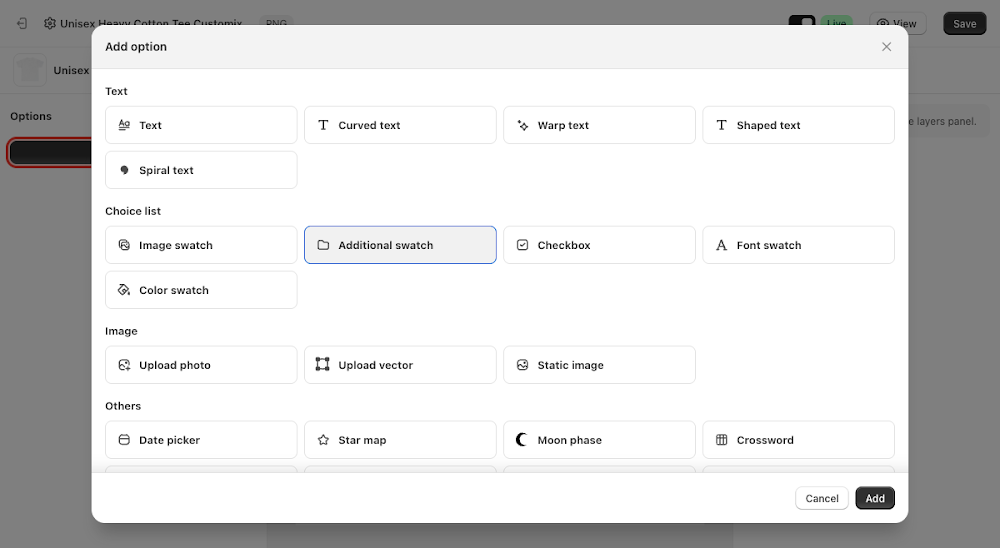
To add it, go to Option sets in the sidebar, open the option set for your product, click Add option, choose Additional swatch under Choice list, then click Add.

Content
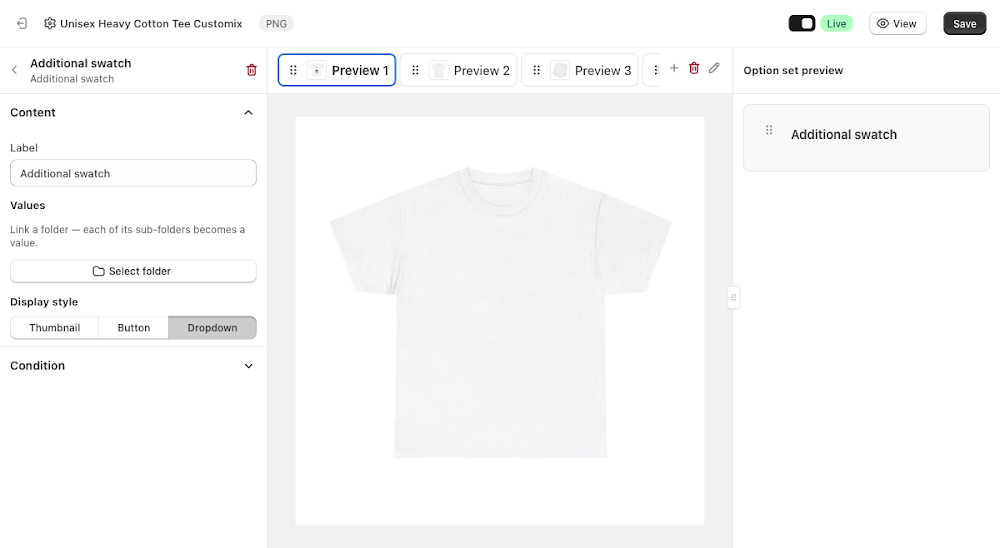
The Content section controls the label, the values customers pick from, and how they're displayed.
- Label: the field name shown above the picker, defaults to "Additional swatch"
- Values: click Select folder to link a folder from your Assets library, each of that folder's sub-folders becomes one selectable value, named after the sub-folder
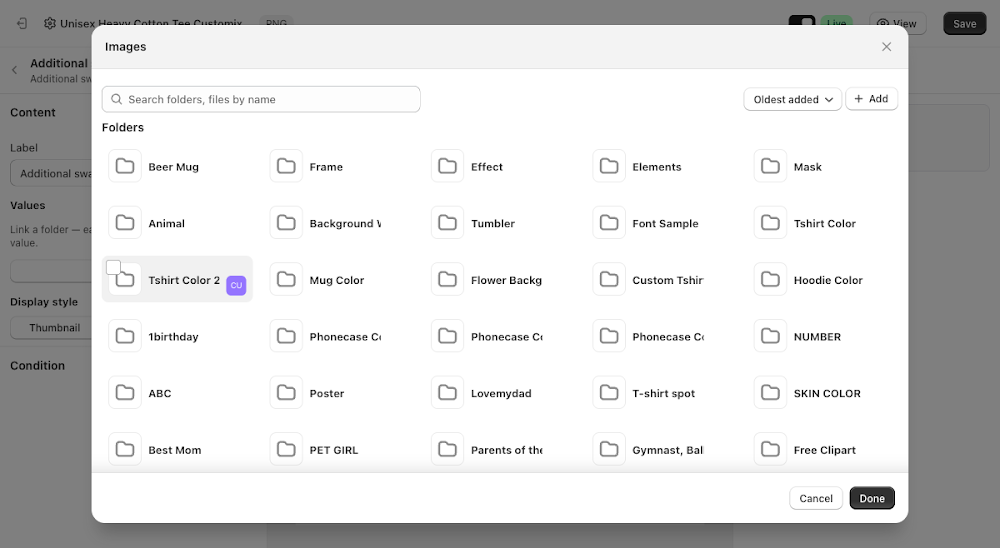
Clicking Select folder opens the Assets library so you can browse to and check the folder you want to link. Only a folder that itself contains sub-folders produces any values, a folder of loose image files (like most existing Assets folders) won't work here since Additional Swatch reads sub-folders, not files.
Once linked, each value appears in the Content panel and the button changes to Change folder if you want to swap the source later. Re-linking the same or a different folder refreshes the values to match its current sub-folders.
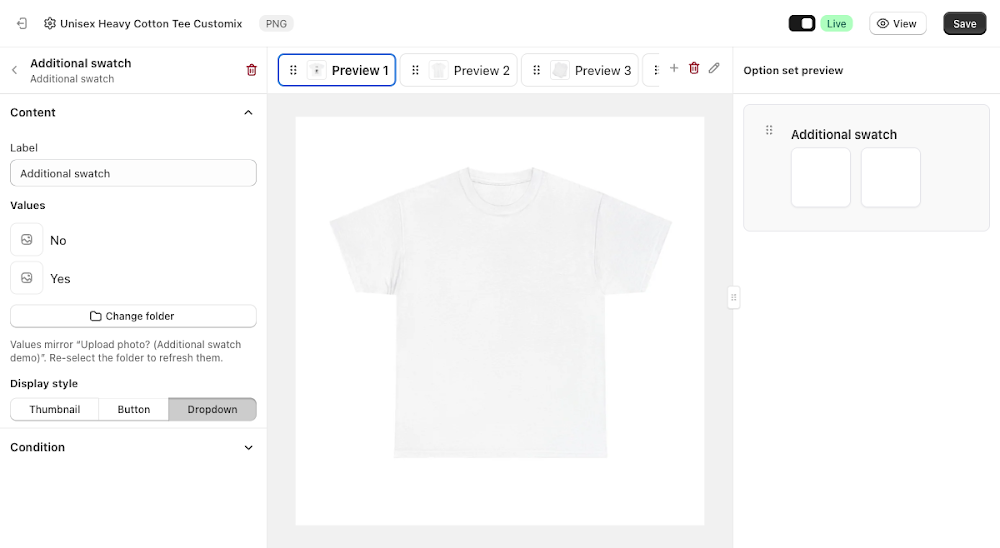
- Display style: choose Thumbnail to show each value as an image tile, Button to show them as buttons, or Dropdown to show them as a select menu
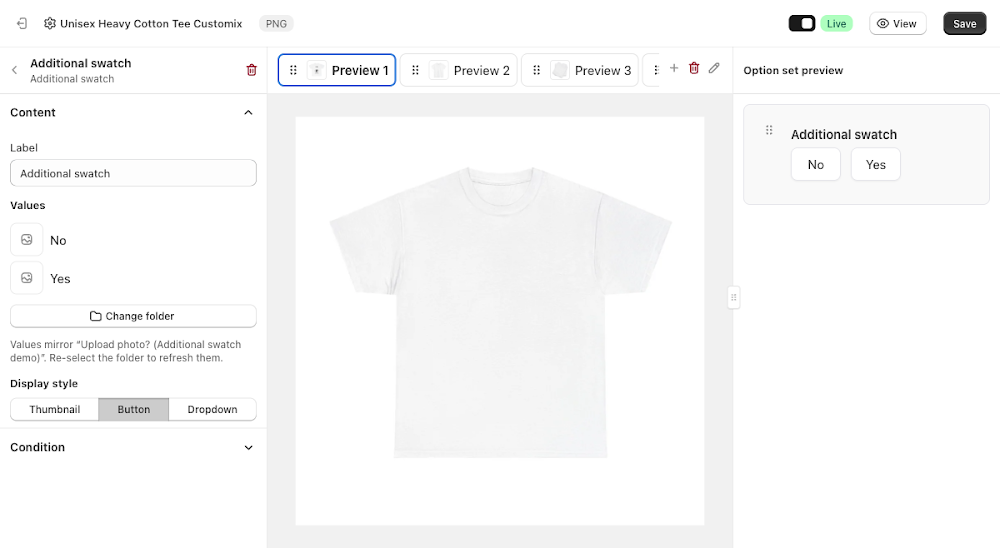
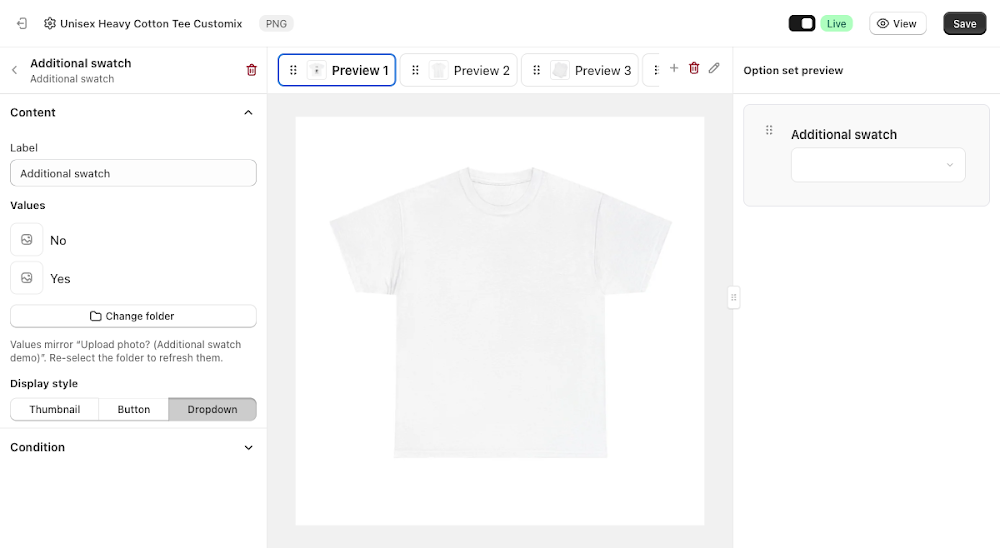
Using it with Condition
Additional Swatch has no Colors, Fonts, or Transform settings of its own, its whole purpose is to feed a choice into Condition on other options. A common setup is a yes/no toggle that shows or hides another option, for example an Upload photo option that should only appear once the customer confirms they want to upload something.
To wire that up, open the option you want to control (like Upload photo), expand its Condition section, click Edit, then Add condition. The condition picker lists every value from your Additional Swatch options right alongside Shopify variant options like Color and Size, so you can pick the exact value (like Yes) to match against.
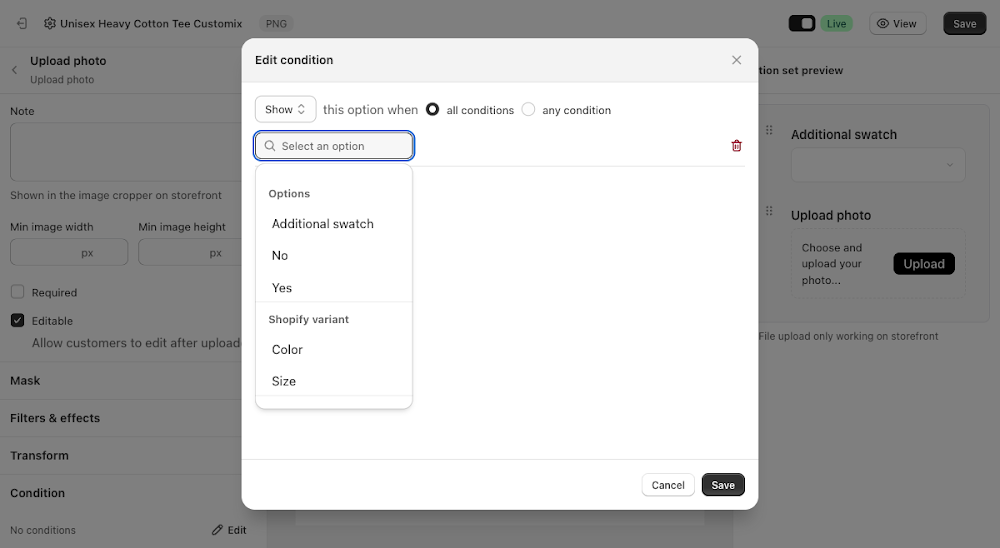
With the condition saved, the controlled option disappears from the preview until the customer picks the matching value, then it reappears automatically.


Like most option types, Additional Swatch also supports its own conditions, so you can show or hide it based on another selection elsewhere in the option set. See the Conditional Option Sets guide if you want to set that up.
📌 Don't forget to click Save once you're happy with the setup, and make sure the option set's status is Active (not Draft). Customers won't see the Additional Swatch option on your storefront until both are done.
Updated on: 16/07/2026
Thank you!