Checkbox Personalization
The Checkbox option lets customers tick a single yes/no box on the product, the simplest way to capture a boolean choice. It's the option to reach for when you don't need a set of named values like Additional Swatch, just one on/off toggle, most often used to feed Condition on another option so a merchant can show or hide something based on whether the customer ticked it.
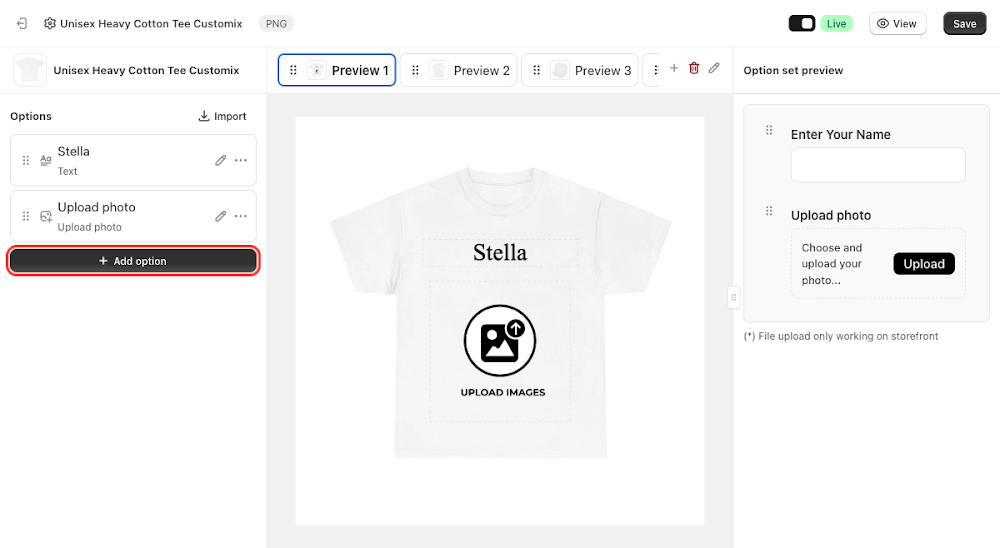
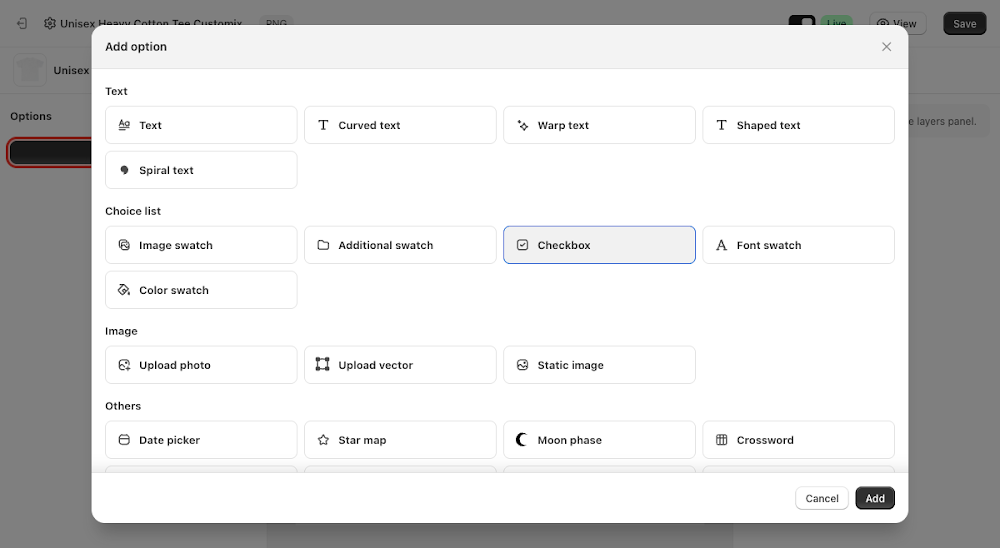
To add it, go to Option sets in the sidebar, open the option set for your product, click Add option, choose Checkbox under Choice list, then click Add.

Content
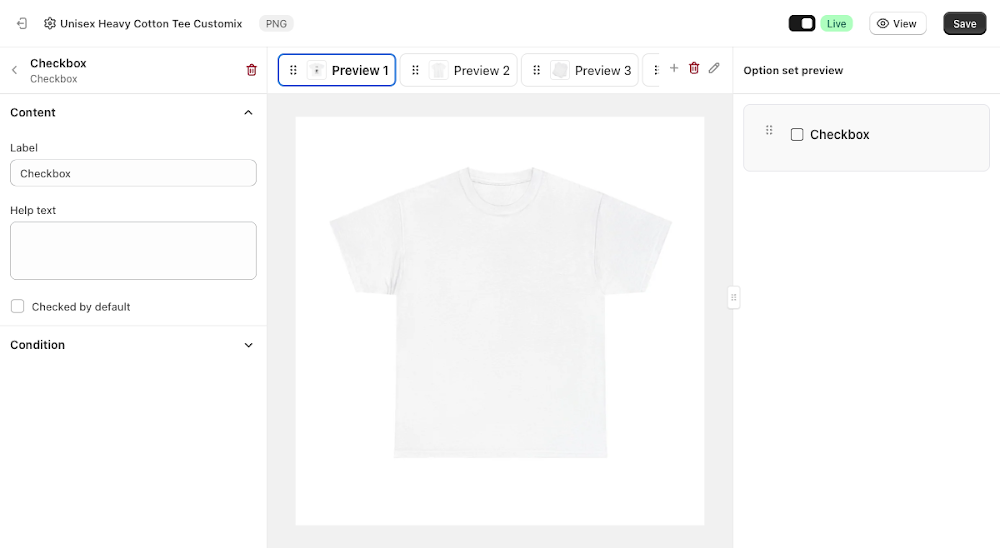
The Content section controls the label, help text, and default state. Checkbox has no canvas layer, Colors, Fonts, or Transform settings of its own, it only shows up in the Option set preview panel as a single tickbox.
- Label: the field name shown next to the checkbox, defaults to "Checkbox"
- Help text: optional guidance shown below the label
- Checked by default: ticked on by default the checkbox starts pre-checked for the customer, this only takes effect on the storefront and doesn't visibly update the in-editor Option set preview

Using it with Condition
Checkbox's main job is feeding a true/false value into Condition on other options, the same mechanism Additional Swatch uses, but simpler since there's only ever one value to match against instead of a set of named choices. A common setup is a checkbox that reveals an Upload photo option only once the customer ticks it.
To wire that up, open the option you want to control (like Upload photo), expand its Condition section, click Edit, then Add condition. Unlike Additional Swatch, which lists each of its values as separate choices, a Checkbox option shows up as a single entry in the picker.
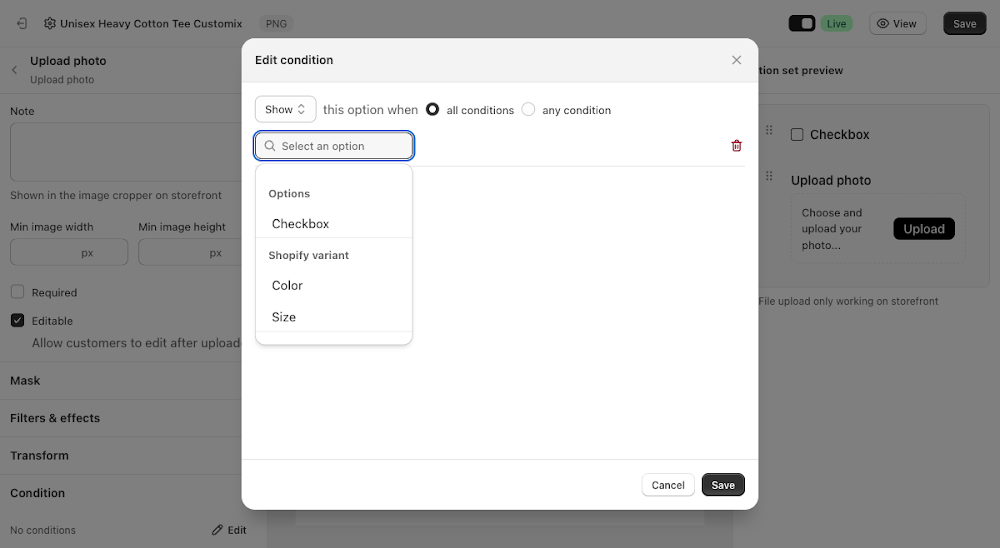
After picking Checkbox, a small on/off tickbox appears next to it, defaulting to off. Tick it to match the condition against the checkbox being checked instead.
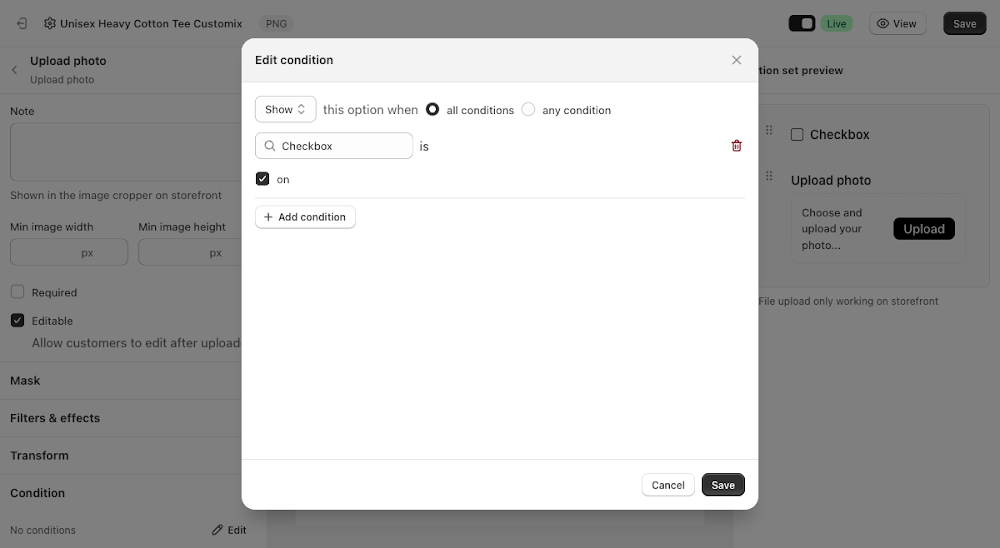
With the condition saved, the controlled option disappears from the preview until the customer ticks the checkbox, then it reappears automatically.
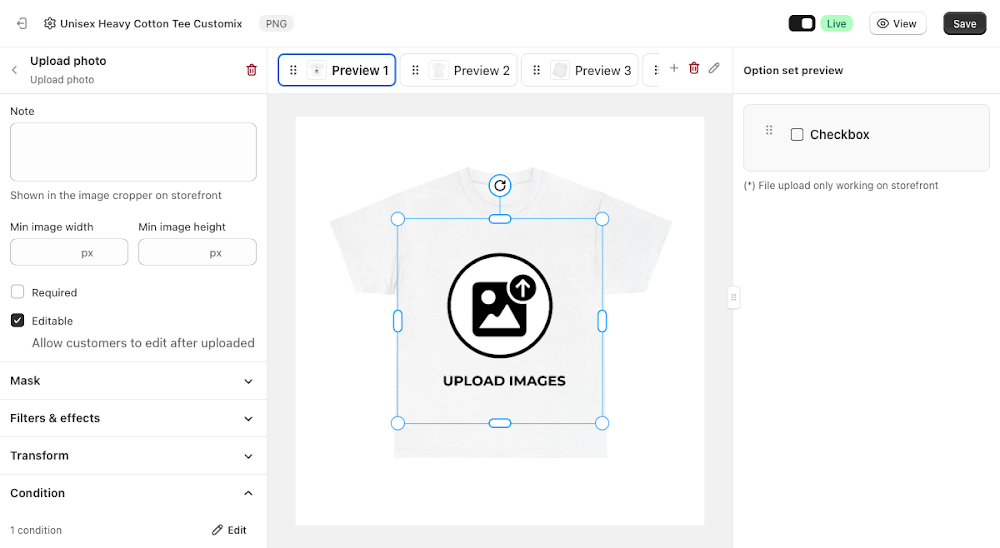
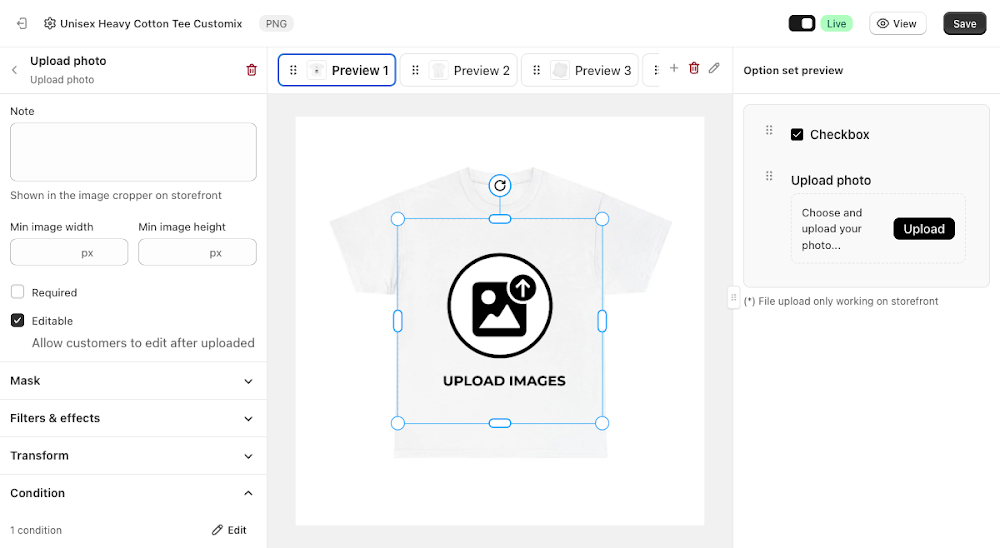
Like most option types, Checkbox also supports its own conditions, so you can show or hide it based on another selection elsewhere in the option set. See the Conditional Option Sets guide if you want to set that up.
📌 Don't forget to click Save once you're happy with the setup, and make sure the option set's status is Active (not Draft). Customers won't see the Checkbox option on your storefront until both are done.
Updated on: 16/07/2026
Thank you!