Star Map Personalization
The Star map option renders an actual chart of the night sky, positioned the way it looked from Earth on a specific date, directly onto the product. It's the option to reach for when a customer wants a keepsake tied to a meaningful date, a birthday, wedding, or anniversary, with the constellations as they truly appeared that night.
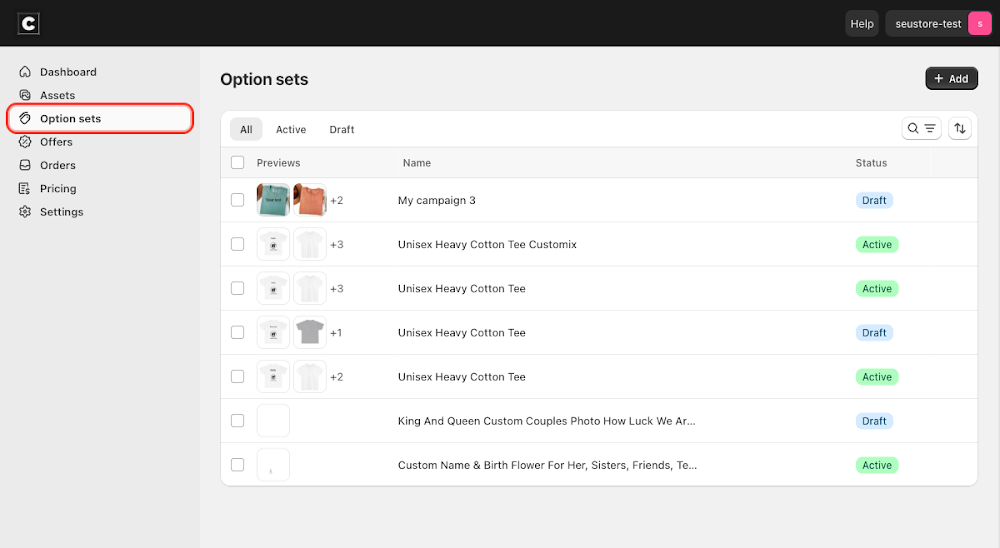
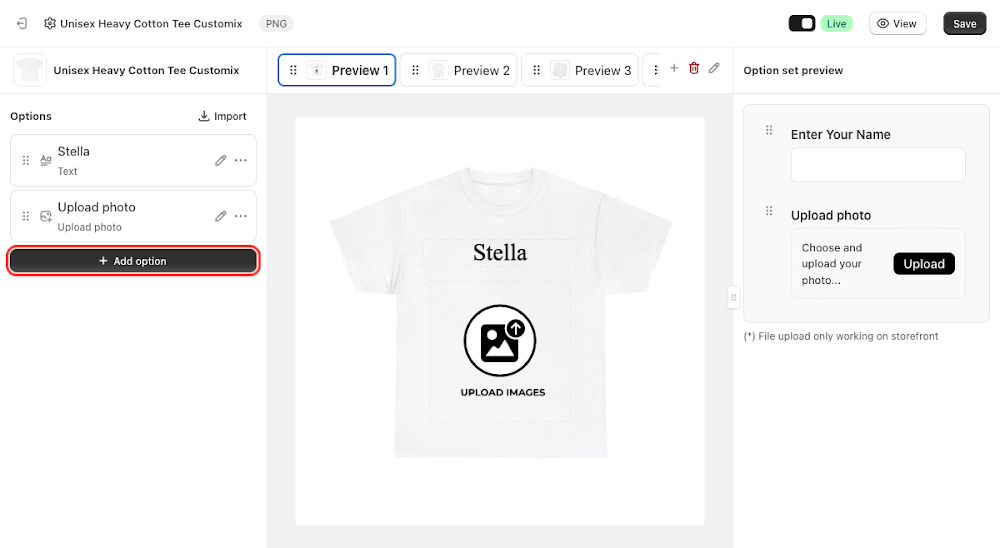
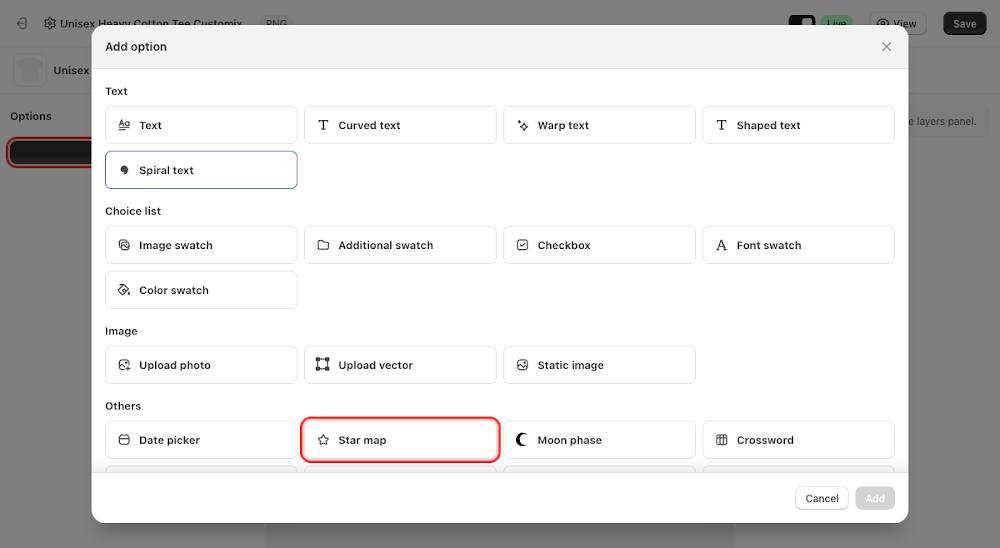
To add it, go to Option sets in the sidebar, open the option set for your product, click Add option, choose Star map under Others, then click Add.
Content
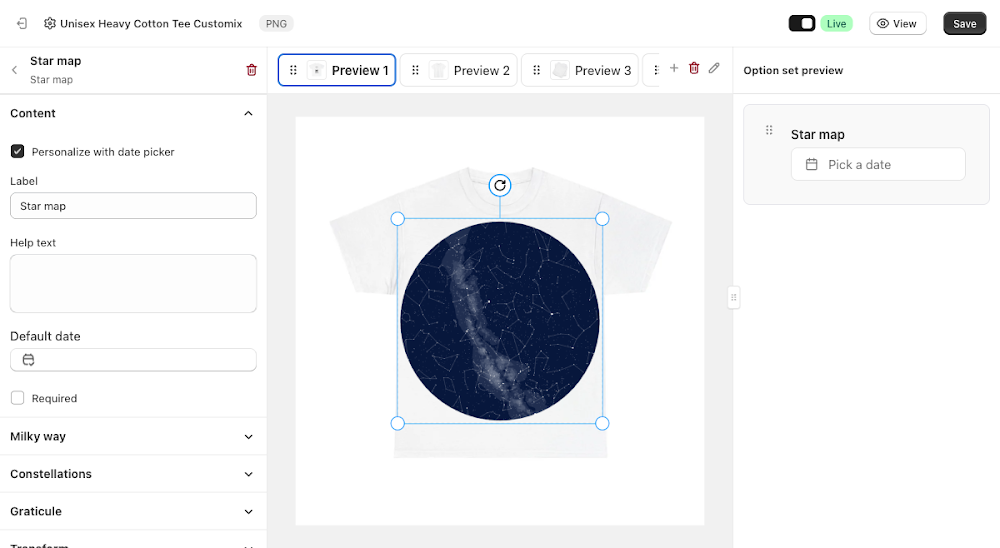
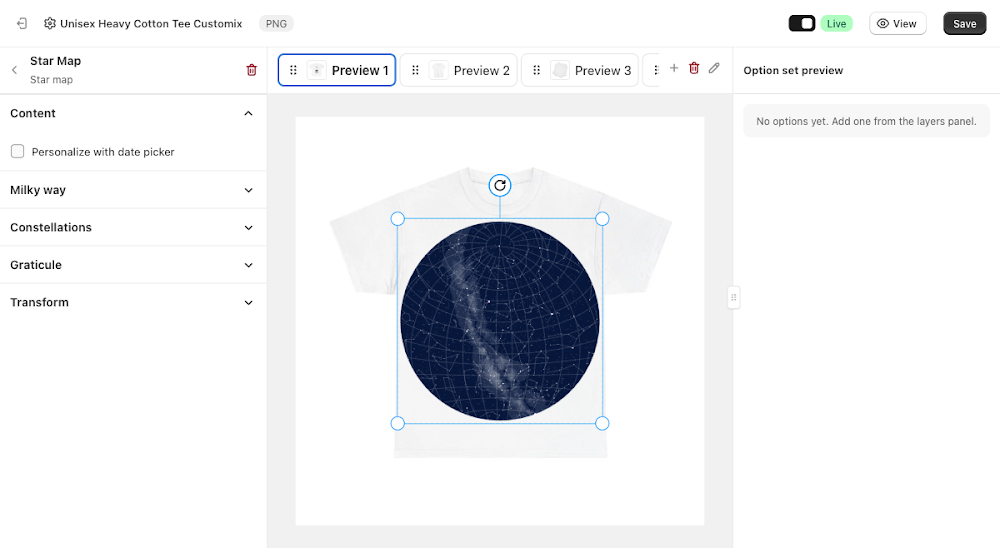
- Personalize with date picker: ticked on by default, this is what makes Star map a real customer-facing option, exposing a Label, Help text, Default date, and Required field, plus a date picker in the storefront preview so the customer can choose the date their map is generated for
- Label: the field name shown above the date picker, defaults to "Star Map"
- Help text: optional guidance shown below the label
- Default date: the date used to render the map before a customer picks one of their own
- Required: forces the customer to pick a date before they can complete the order
Unticking Personalize with date picker removes all of those fields, along with the Condition section, and the map disappears from the Option set preview entirely. In this state Star map isn't a customer-facing option at all, it's a fixed decorative layer that always renders whatever date is baked into its settings, useful for a design that should always show a specific sky (a launch date, a founding date) without asking the customer anything.
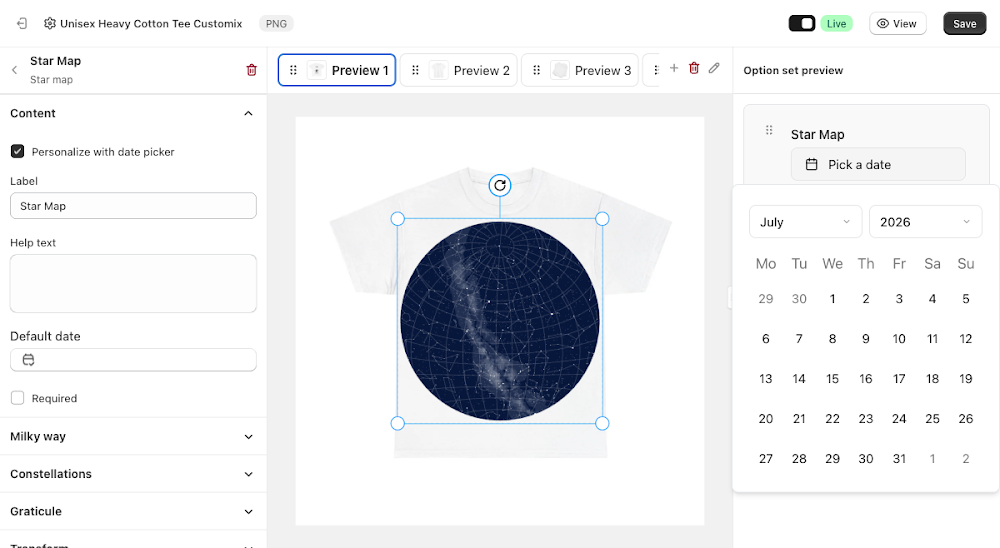
With Personalize with date picker back on, clicking the date field in the Option set preview opens a plain month/year calendar for the customer to pick from.
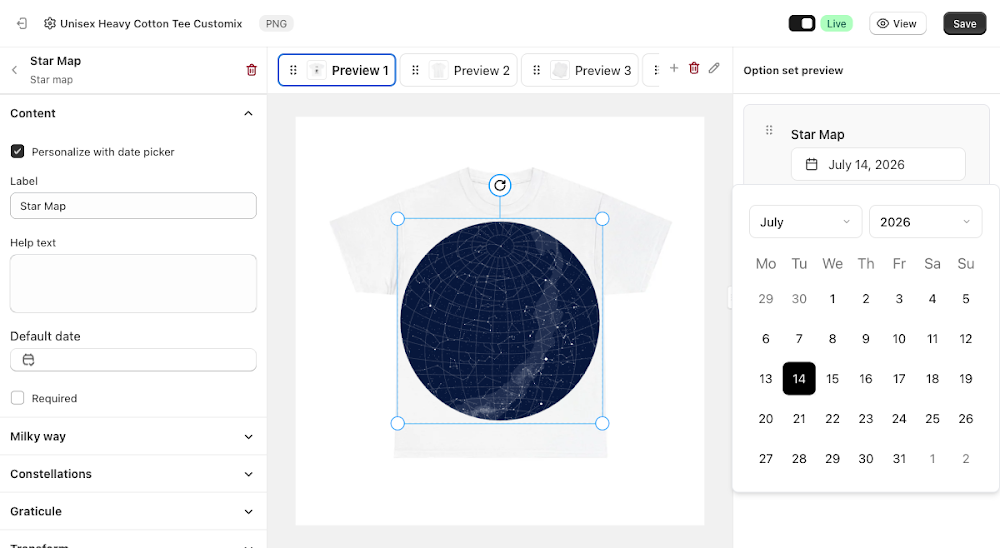
Picking a date re-renders the map on the canvas to match the real sky positions for that date.
Milky way
Controls the soft band representing the Milky Way across the map.
- Show milky way: toggles the band on or off, ticked by default
- Color: the band's color, defaults to white
- Opacity: how visible the band is, from 0 to 1, defaults to 0.1
- Sky color: the background color of the map itself, defaults to a dark navy

Constellations
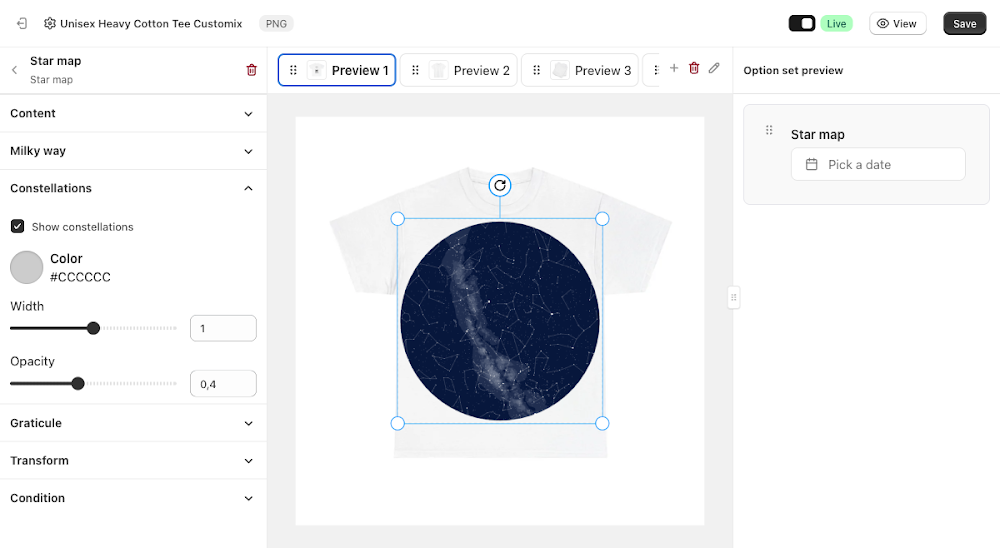
Controls the constellation line art drawn between stars.
- Show constellations: toggles the lines on or off, ticked by default
- Color: the line color, defaults to a light grey
- Width: the line thickness, defaults to 1
- Opacity: how visible the lines are, defaults to 0.4
Graticule
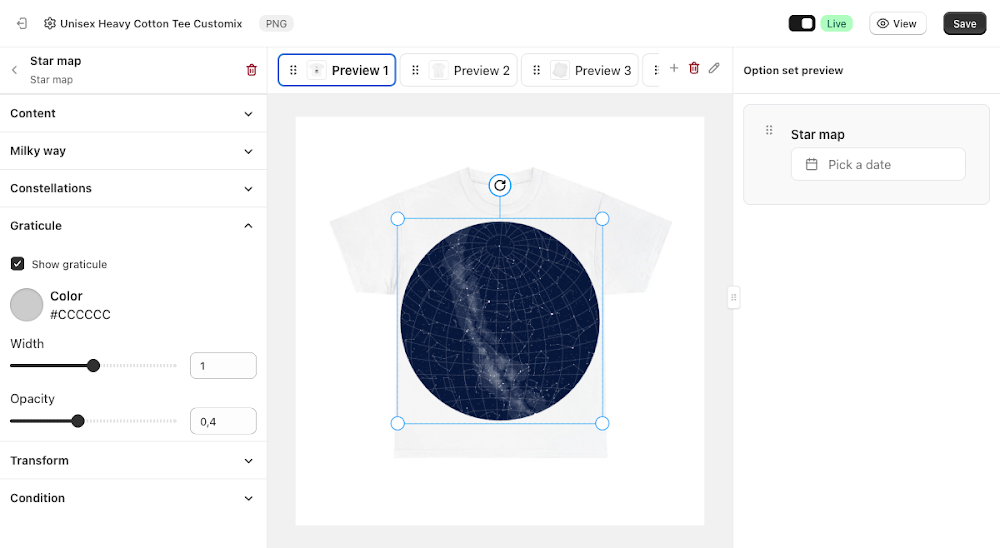
Controls the coordinate grid overlaid on the map. Unlike Milky way and Constellations, this is off by default.
- Show graticule: toggles the grid on or off, unticked by default
- Color: the grid line color, defaults to a light grey
- Width: the line thickness, defaults to 1
- Opacity: how visible the grid is, defaults to 0.4
Transform
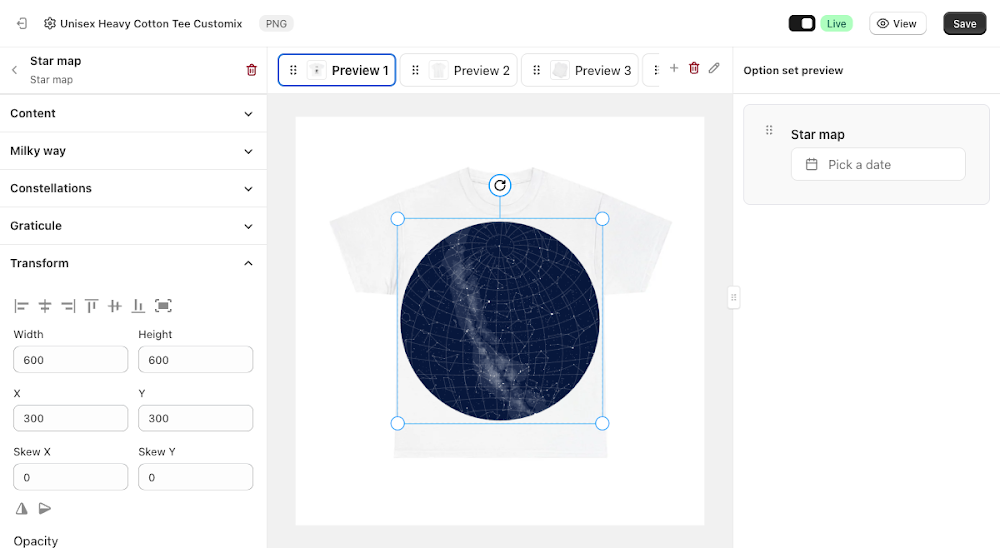
The standard Width, Height, X, Y, Skew X, Skew Y, alignment, and flip controls for positioning the map on the canvas, the same Transform panel shared by other canvas-based option types.
Condition
Like most option types, Star map supports its own conditions, so you can show or hide it based on a selection elsewhere in the option set, for example an Additional Swatch or Checkbox toggle. Note this section only appears while Personalize with date picker is ticked. See the Conditional Option Sets guide if you want to set that up.
📌 Don't forget to click Save once you're happy with the setup, and make sure the option set's status is Active (not Draft). Customers won't see the Star map option on your storefront until both are done.
Updated on: 16/07/2026
Thank you!