Spline Text Personalization
The Spline Text option lets customers type their own text and see it follow a curve you draw yourself, such as a gentle arch, a wave, or a swoop across the product. Unlike Warp Text, it doesn't stretch the letters, it lines them up along your curve, so reach for it when a name has to follow a specific line in your artwork.
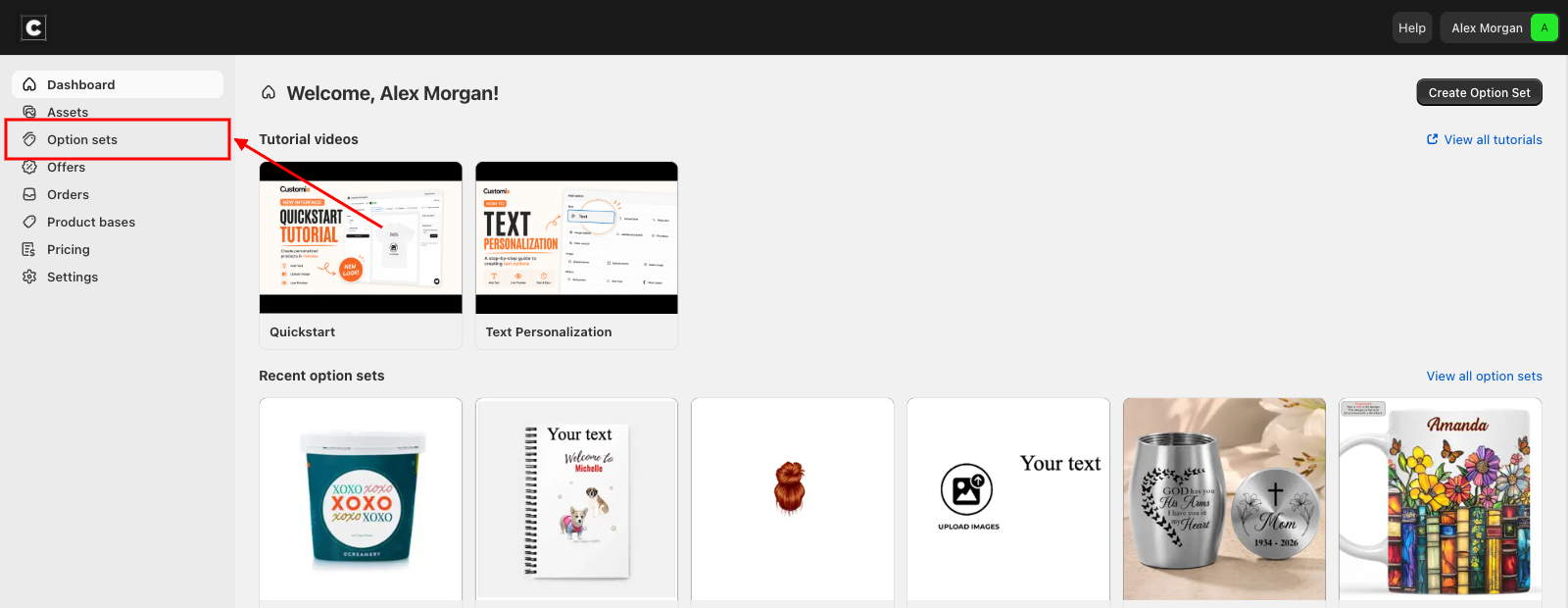
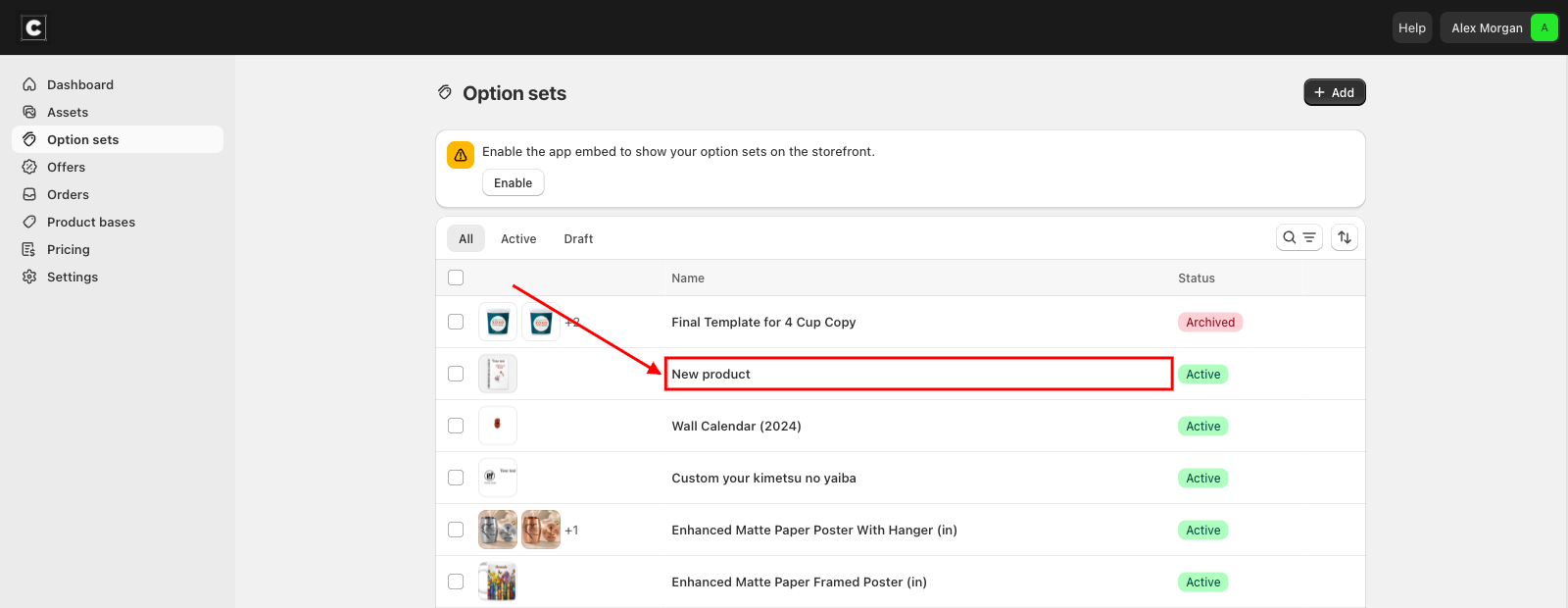
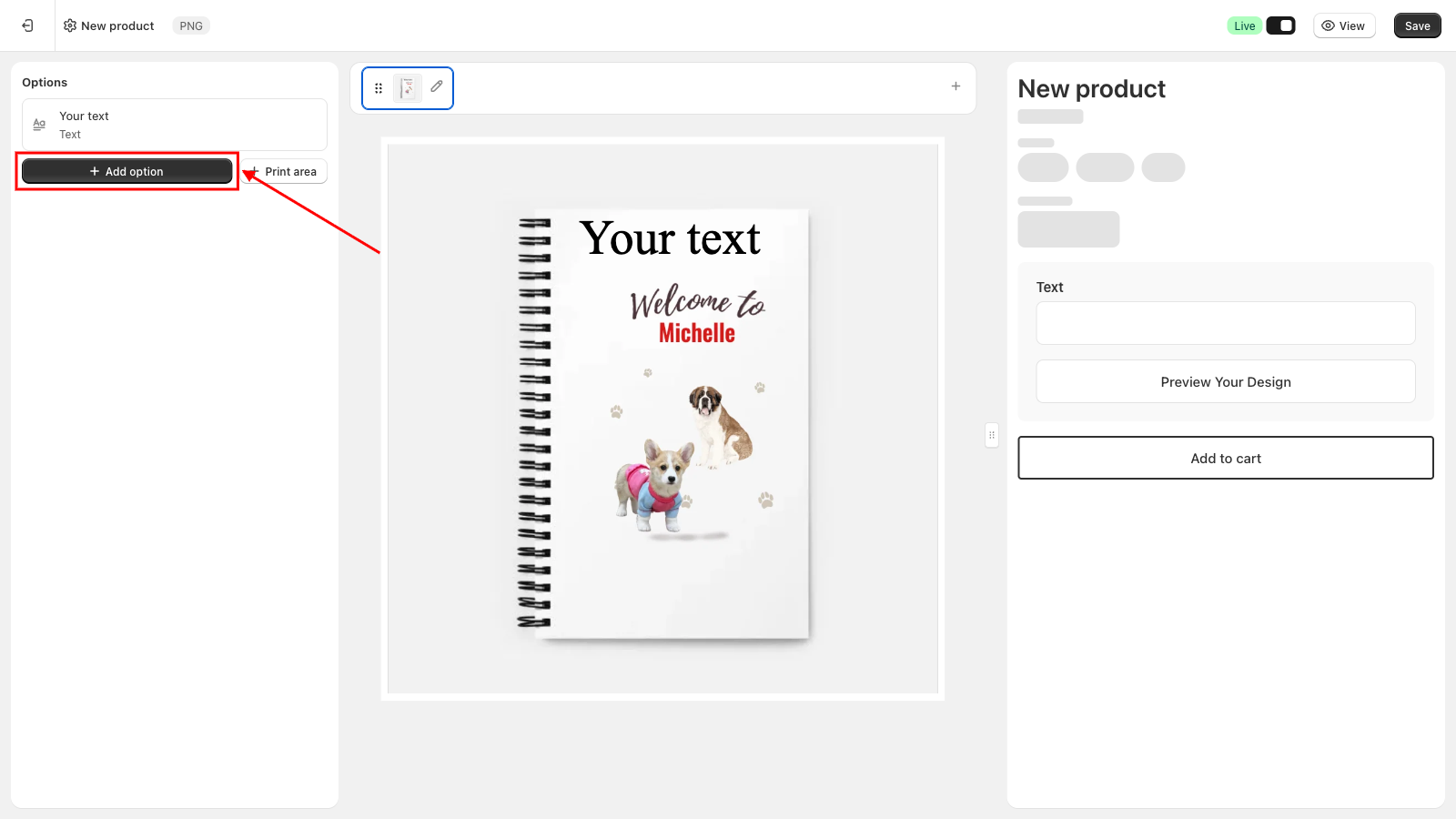
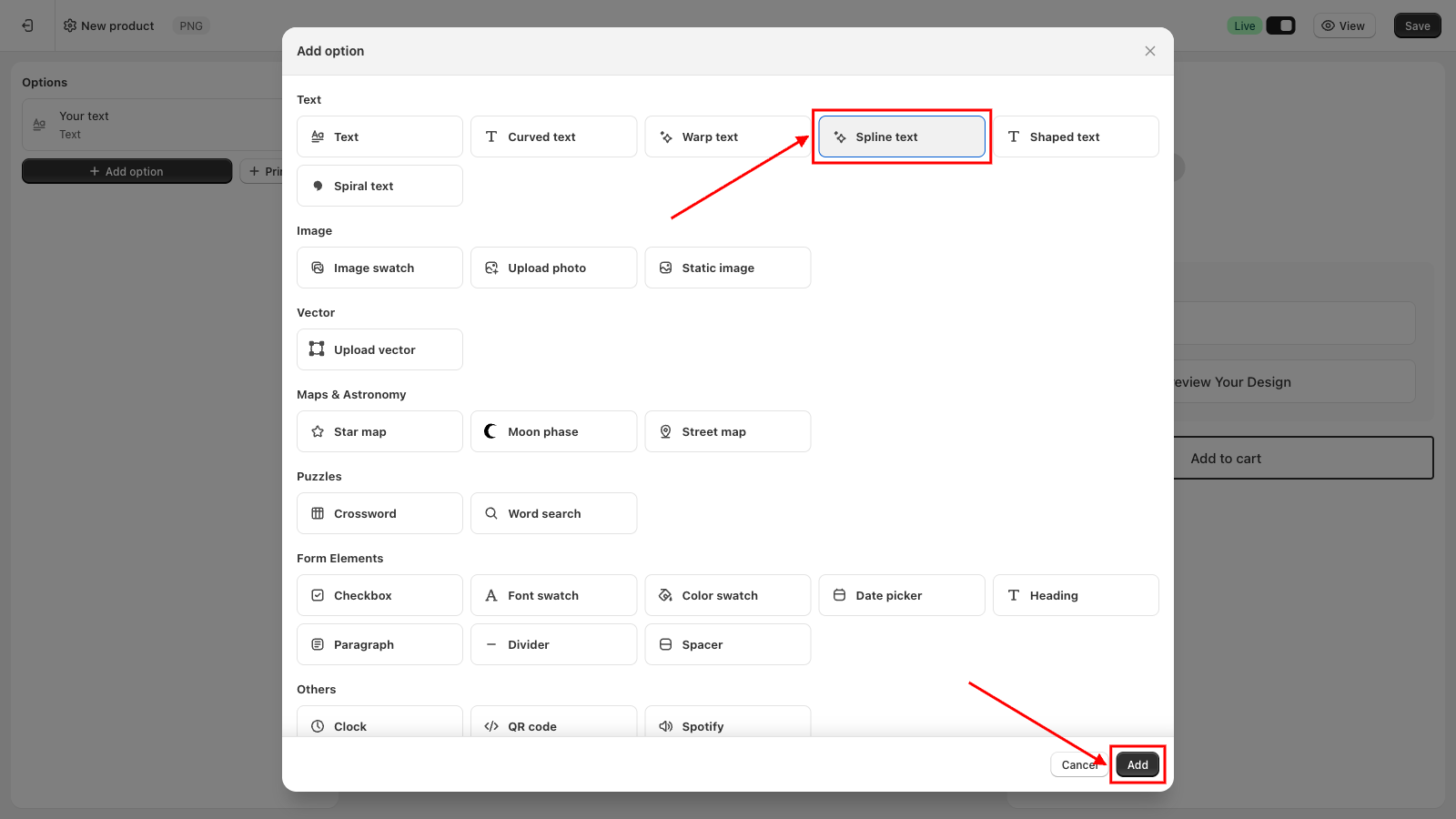
To add it, go to Option sets in the sidebar, open the option set for your product, click Add option, choose Spline text under Text, then click Add. A spline text layer appears on the preview canvas showing "YOUR TEXT" on a straight line, and you can drag, resize, or rotate it into position on the product.
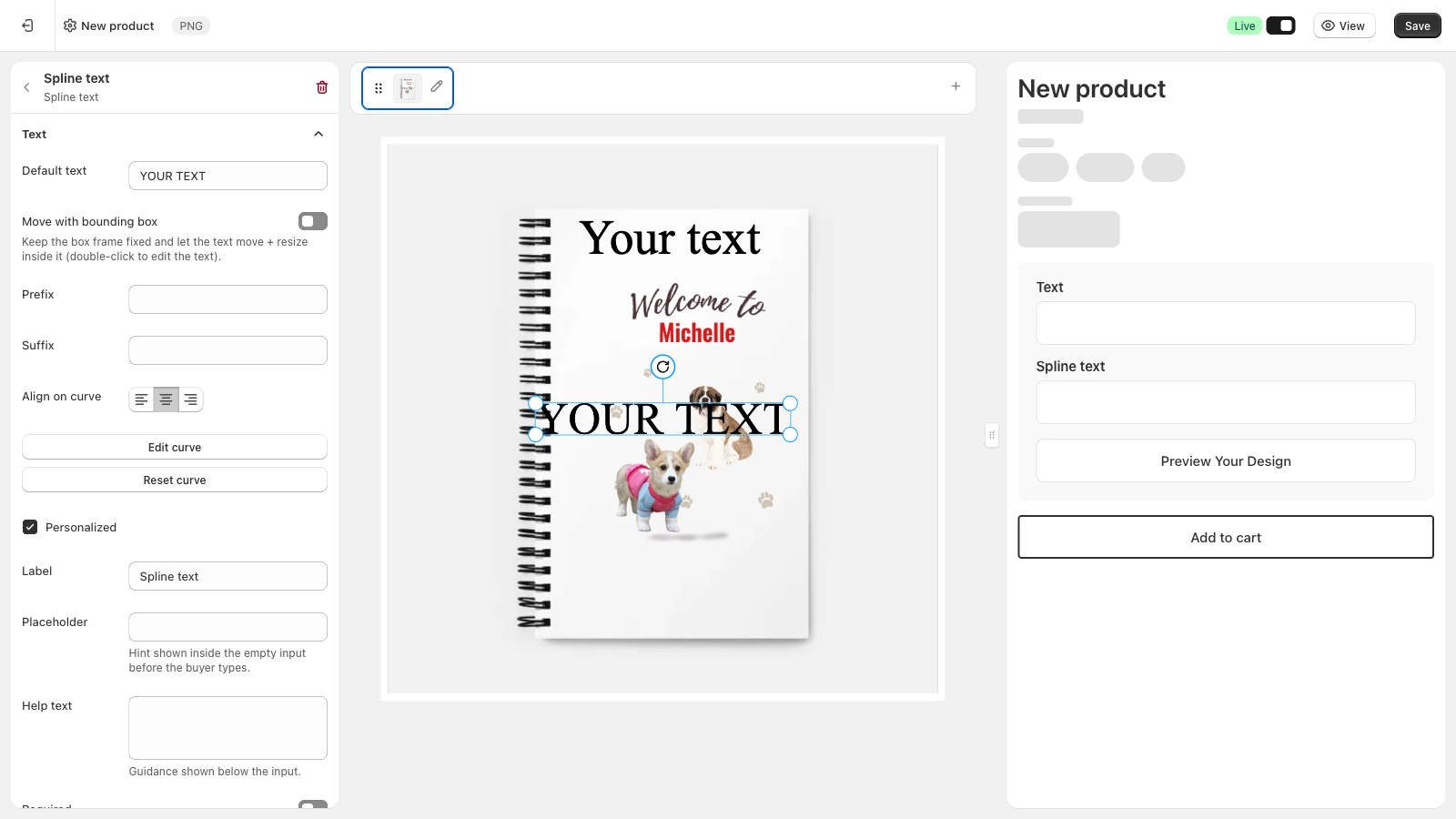
Text
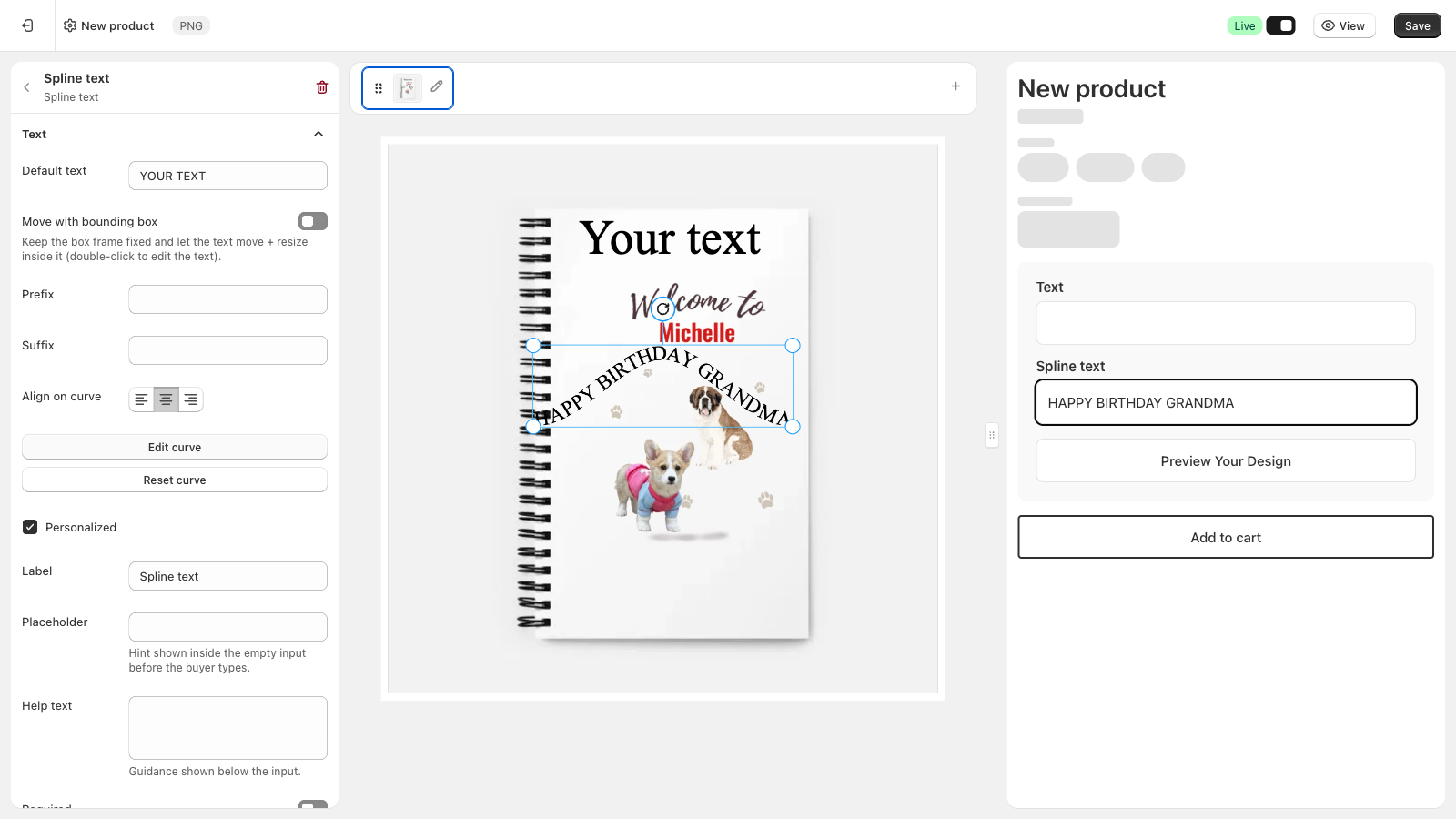
The Text section controls the default text, the curve, and the input customers fill in.
- Default text: the sample text shown on the preview canvas before a customer types anything, defaults to "YOUR TEXT"
- Move with bounding box: keeps the box frame fixed and lets the text move and resize inside it, double-click the layer to edit the text directly
- Prefix and Suffix: fixed text added before or after whatever the customer types
- Align on curve: starts short text at the beginning (Left), middle (Center) or end (Right) of the curve, defaults to Center
- Personalized: lets customers type their own text, checked on by default
- Label: the field name shown above the input, defaults to "Spline text"
- Placeholder: hint text shown inside the empty input before the customer types
- Help text: optional guidance shown below the input
- Required: the customer must enter text before they can add the product to cart
- Is paragraph: switches the input to a multi-line textarea instead of a single line
⚠️ Spline Text always sits on a single line along the curve. If Is paragraph is on and a customer starts a new line, the line break is shown as a space.
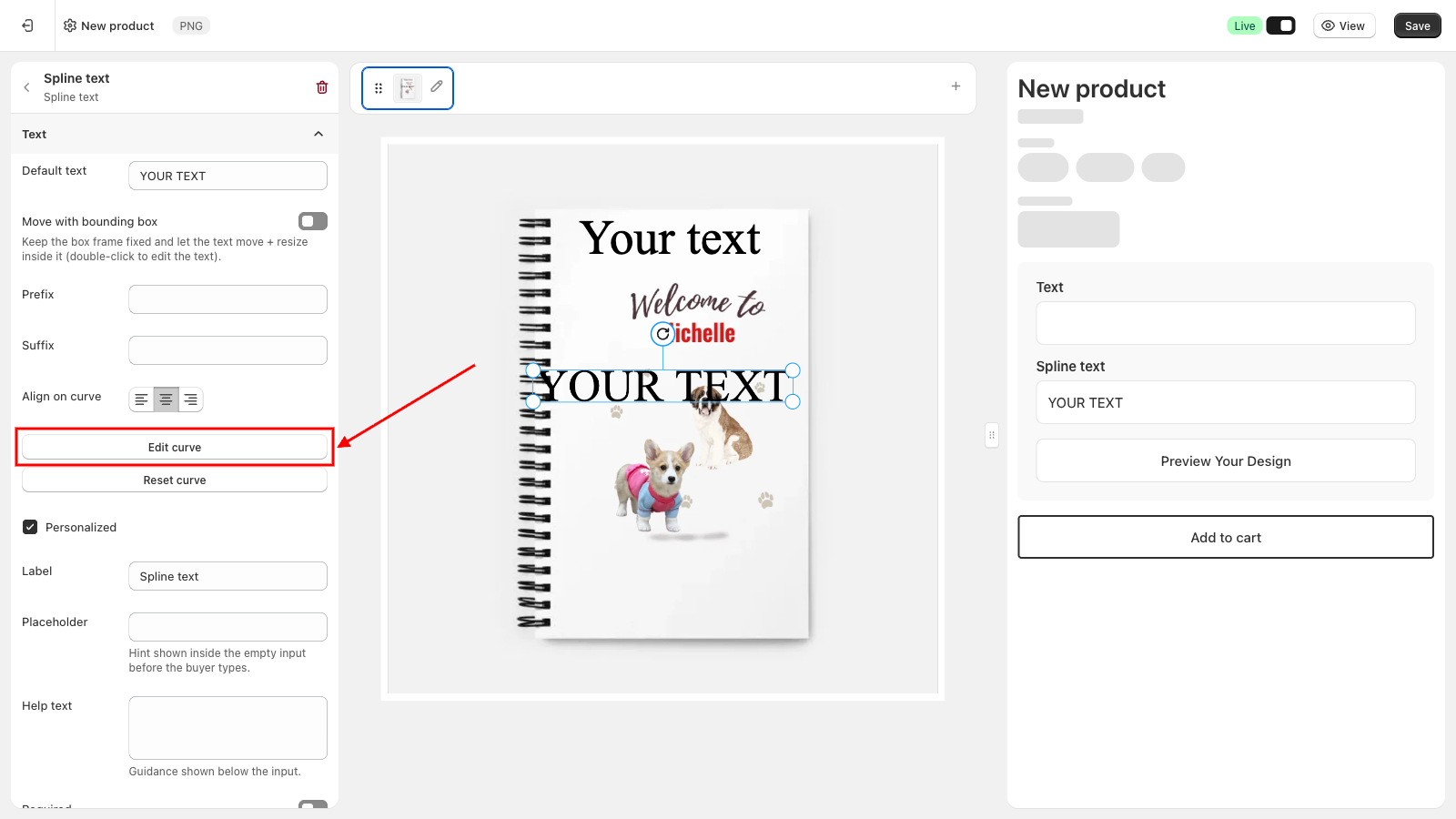
Draw the Curve
Click Edit curve to switch the canvas into curve editing. The curve shows three solid points, one at each end and one in the middle, with small round handles beside them. Drag a point to move that part of the curve, and drag a handle to change how it bends there. The handles beside the middle point move together, so the curve stays smooth. Click Save, the same button, when you're done.
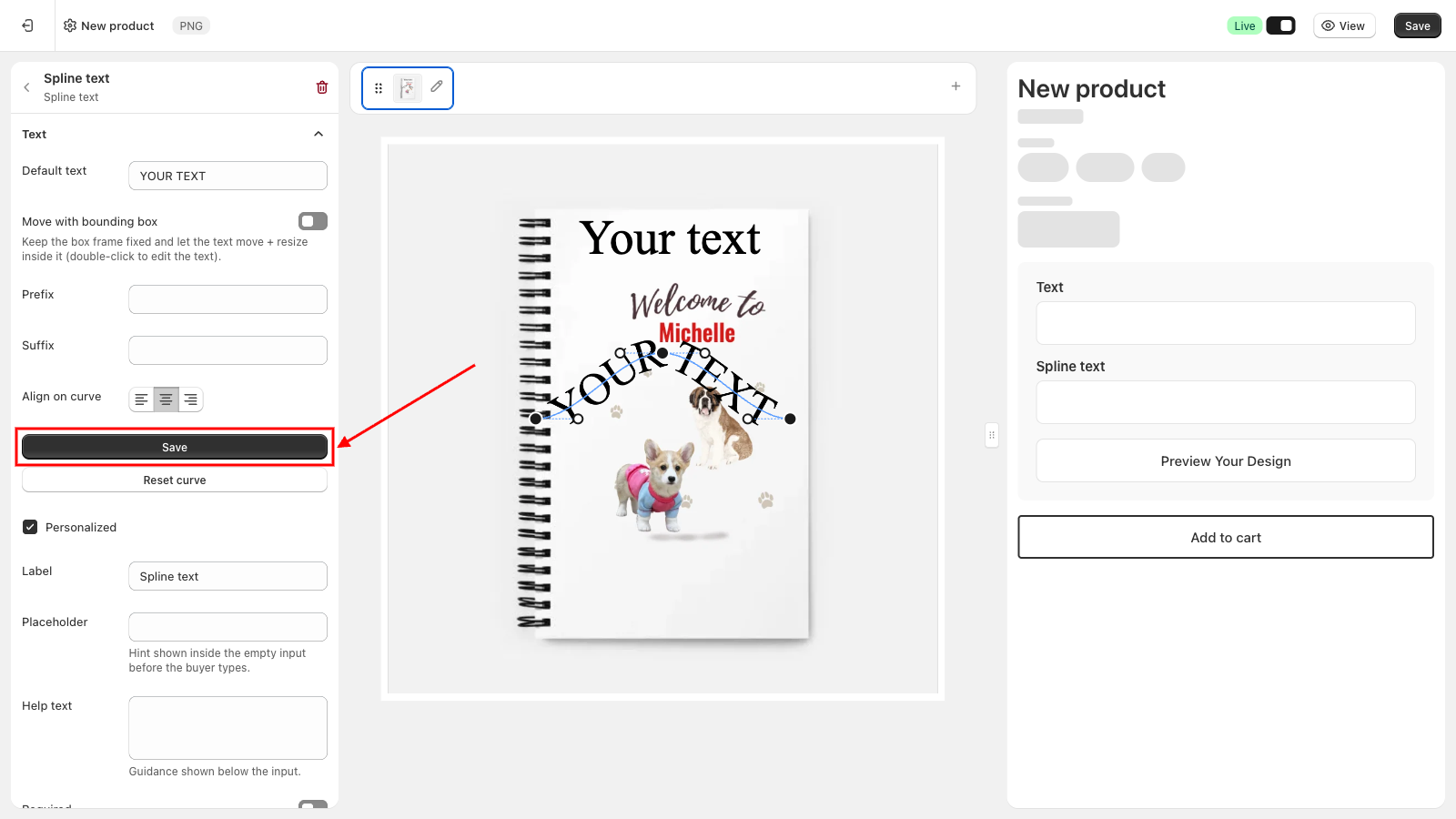
Click Reset curve at any time to go back to a straight line.
Fonts & characters
The Fonts & characters section controls typography and how big the text can get.
- Default font: search and pick the font used for the text, or click the upload icon next to it to use your own font file
- Max font size: the largest the text can grow, based on your print area's width and scaled when you resize the layer
- Min font size: the smallest the text can shrink to, defaults to 1
- Personalized: lets customers choose their own font on the storefront, off by default
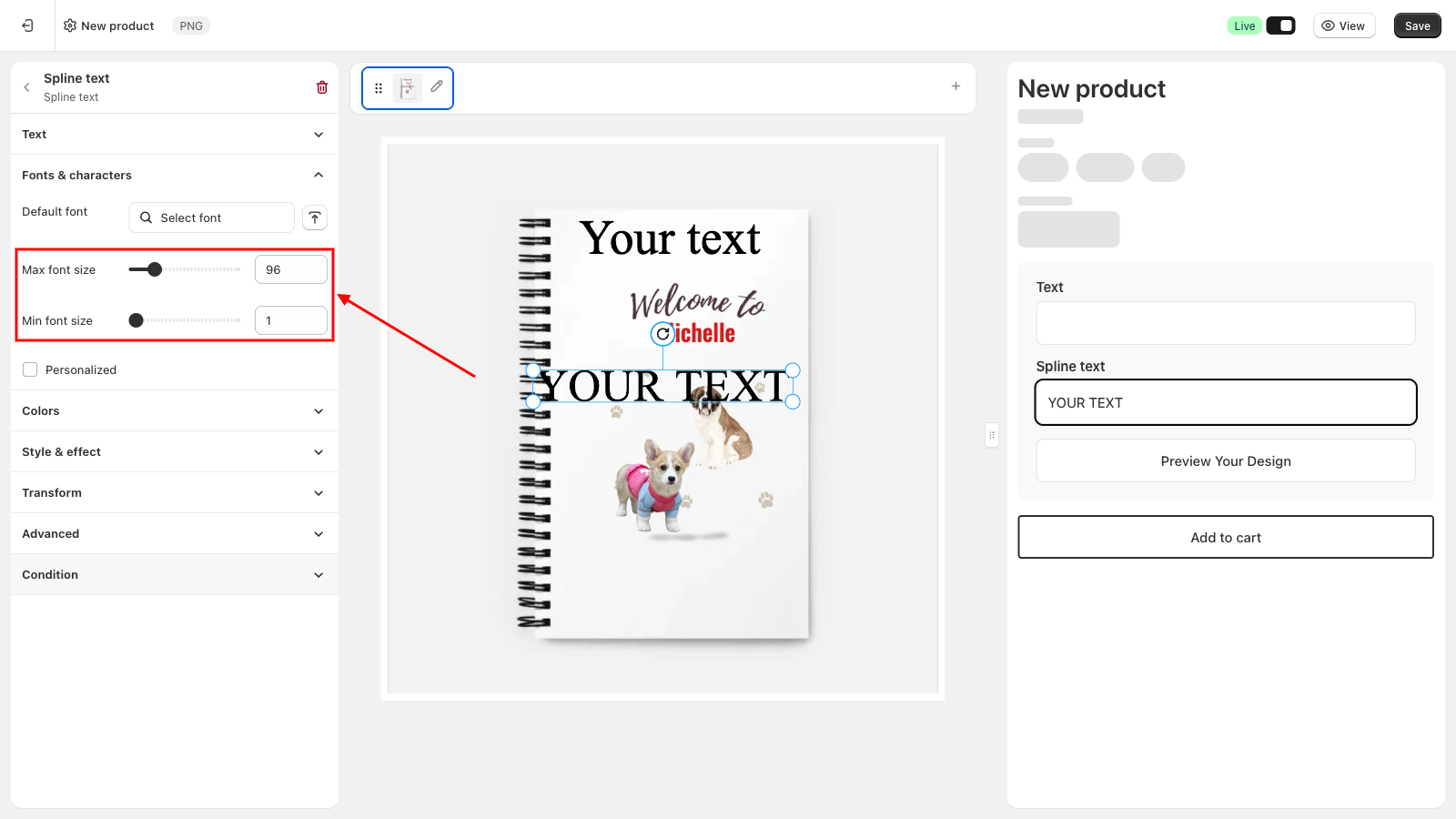
📌 Spline Text resizes itself to fill the curve as customers type, growing up to Max font size and shrinking down to Min font size, so long text stays on the curve. Text that doesn't fit even at Min font size runs past the ends of the curve.
Colors
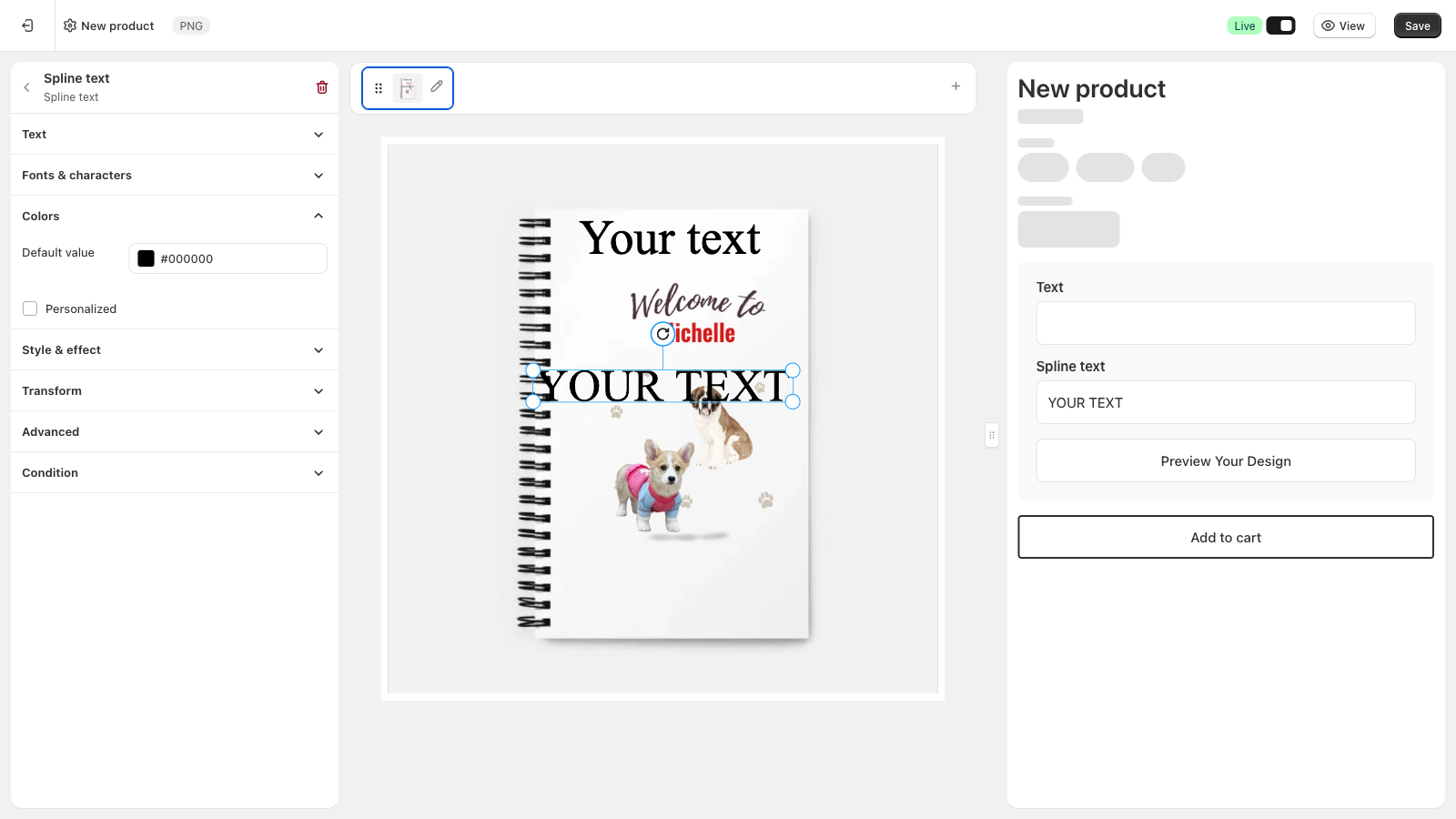
The Colors section controls the text color.
- Default value: the color applied to the text, black by default
- Personalized: lets customers pick their own text color on the storefront, off by default
Style & effect
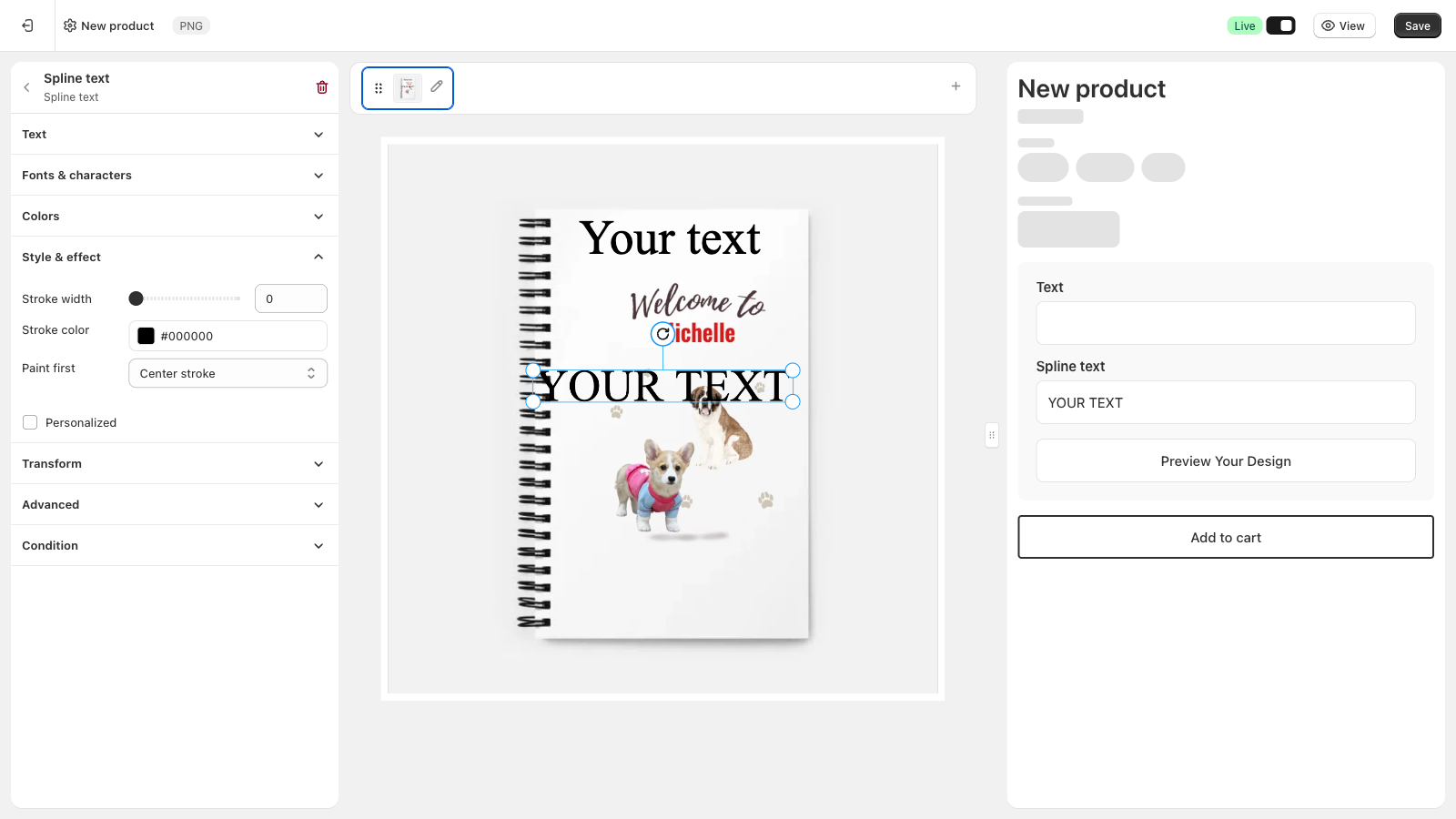
The Style & effect section adds an outline around the text.
- Stroke width: thickness of the outline, 0 by default (no stroke)
- Stroke color: color of the outline, black by default
- Paint first: how the outline is drawn around the letters, defaults to Center stroke, which spreads the outline both inside and outside the letters
- Personalized: lets customers choose an outline from a set you prepare, off by default
Transform
Fine-tune the spline text layer's width, height, X/Y position, skew, opacity, and rotation, the same controls available on every other layer type, to nudge it into exactly the right spot on the mockup.
Customer storefront experience
Customers see a text field with the label you set. As they type, the preview shows their text running along your curve, shrinking as it gets longer. Customers can't reshape the curve, but they can pick a font, color, or outline for anything you set to Personalized. The print file follows the same curve as the preview.
Like most option types, Spline Text also supports conditions, so you can show or hide it based on another selection elsewhere in the option set from the Condition section.
📌 Don't forget to click Save once you're happy with the setup, and make sure the option set's status is Active (not Draft). Customers won't see the Spline Text option on your storefront until both are done.
Updated on: 21/09/2026
Thank you!