Setting Up Format and Color Model for Print File
The Format and Color mode settings let you choose how Customix creates your print files for each option set: the file type (PNG, JPEG, PDF, EPS or AI) and whether the colors are RGB or CMYK. Reach for them when your printer, print provider or production software expects something other than an RGB PNG, so the print files for every personalized order arrive ready to use, without converting them first.
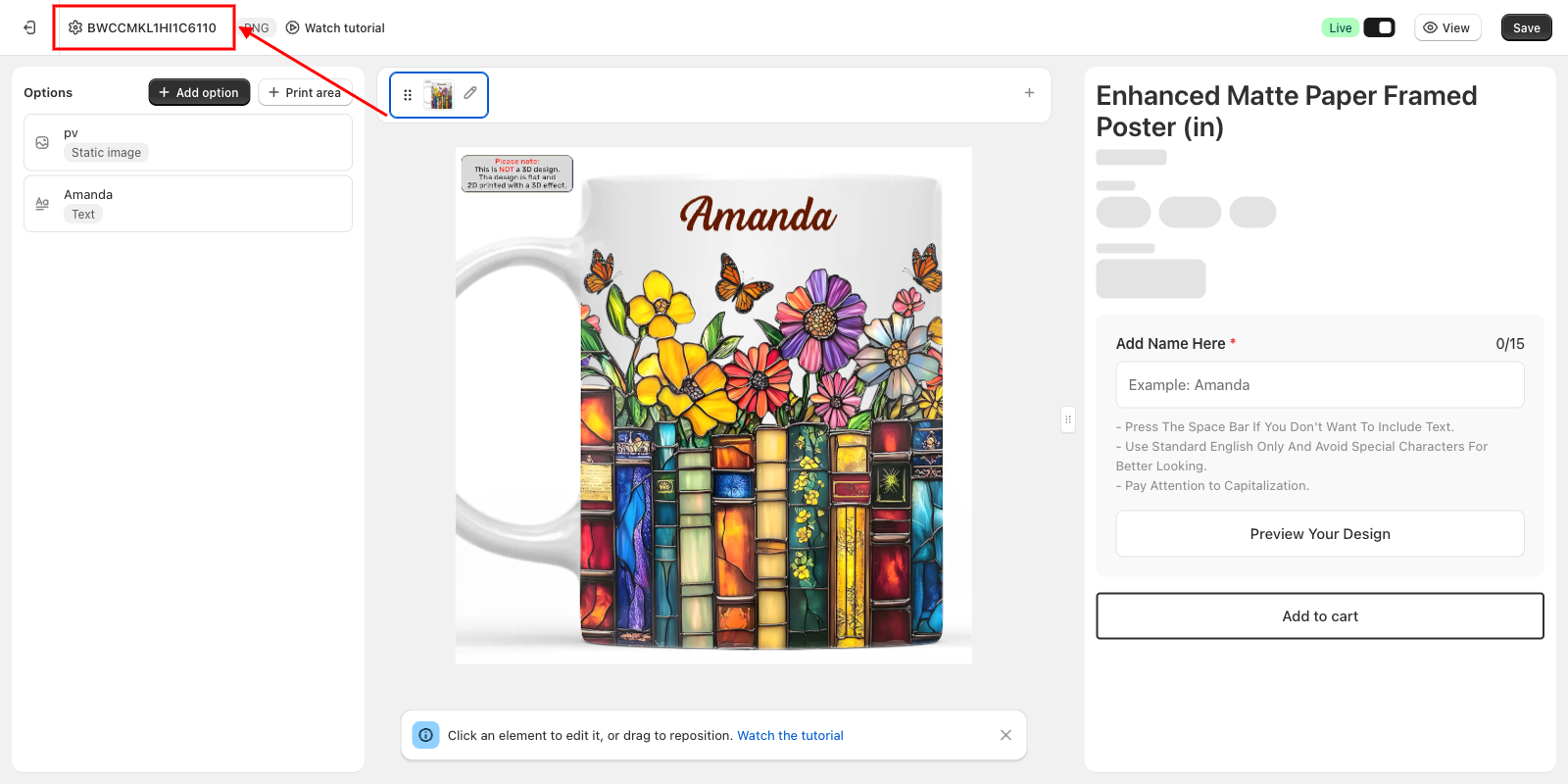
To change them, go to Option sets in the left sidebar, open the option set for your product, click the option set's name in the upper-left corner of the editor, pick a file type under Format and, for PDF, EPS or AI files, a Color mode, then click Save.
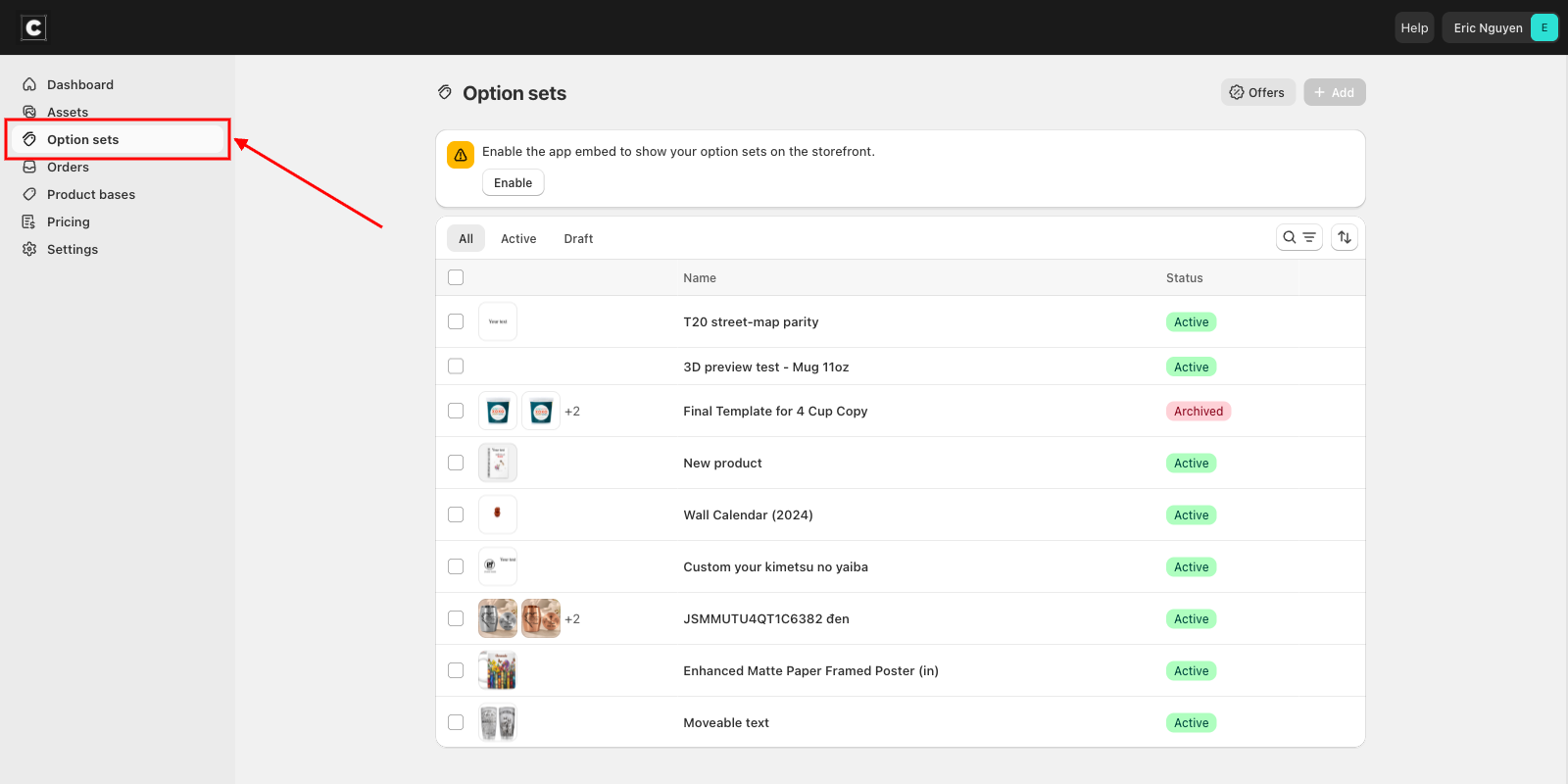
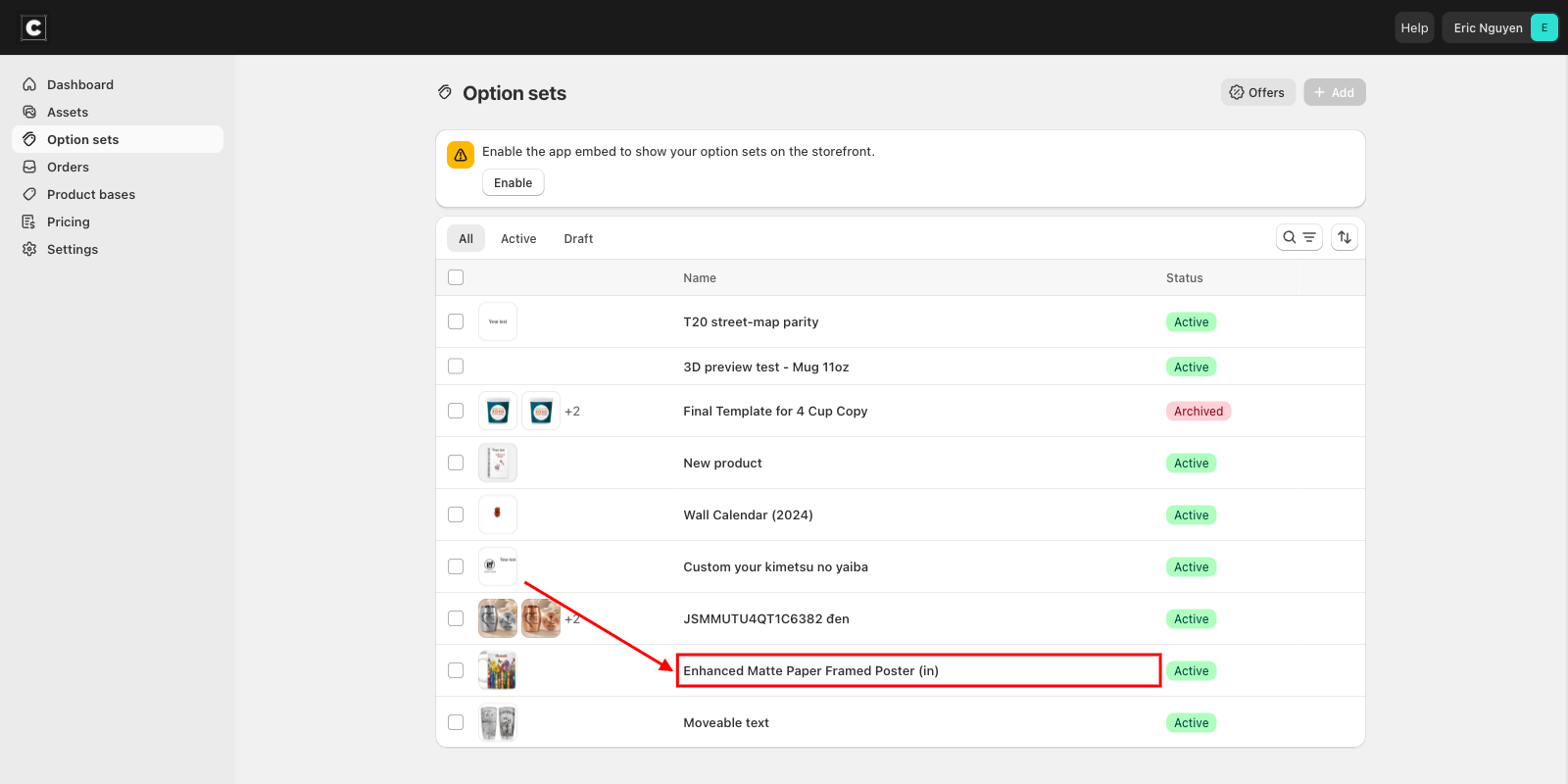
Settings
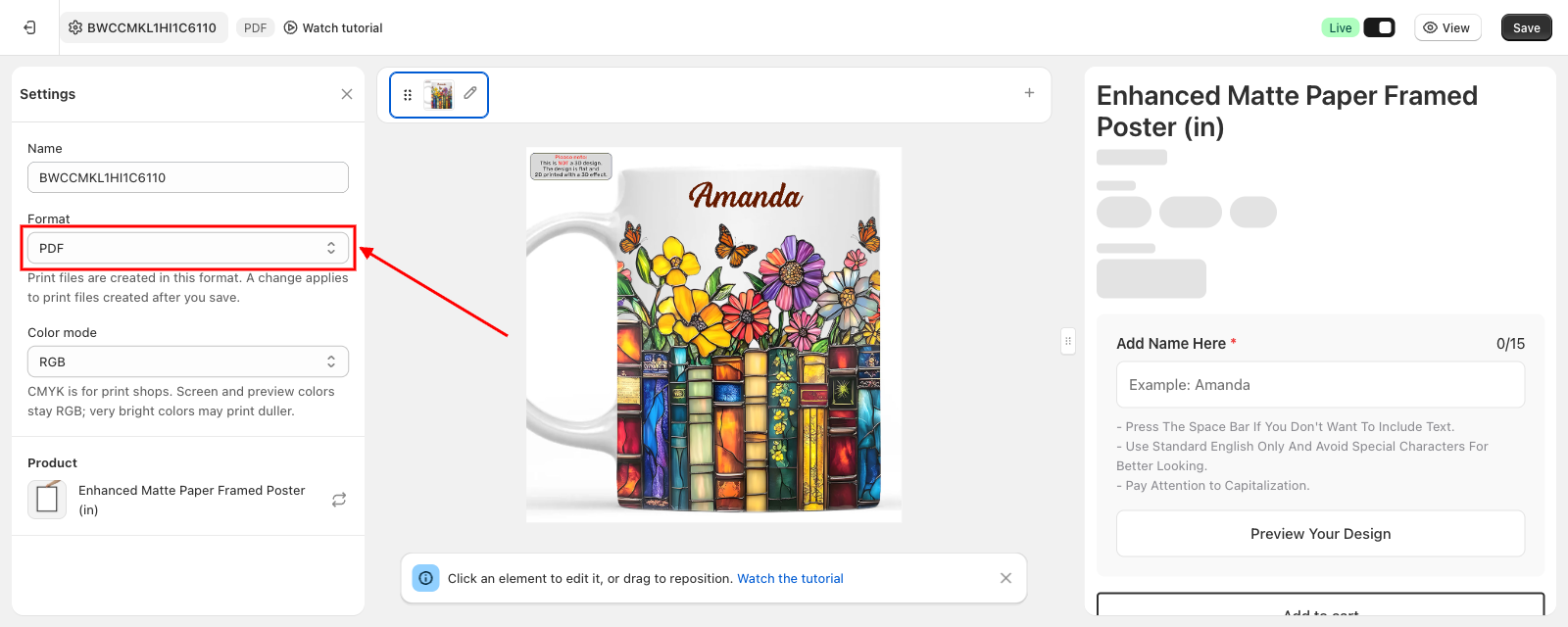
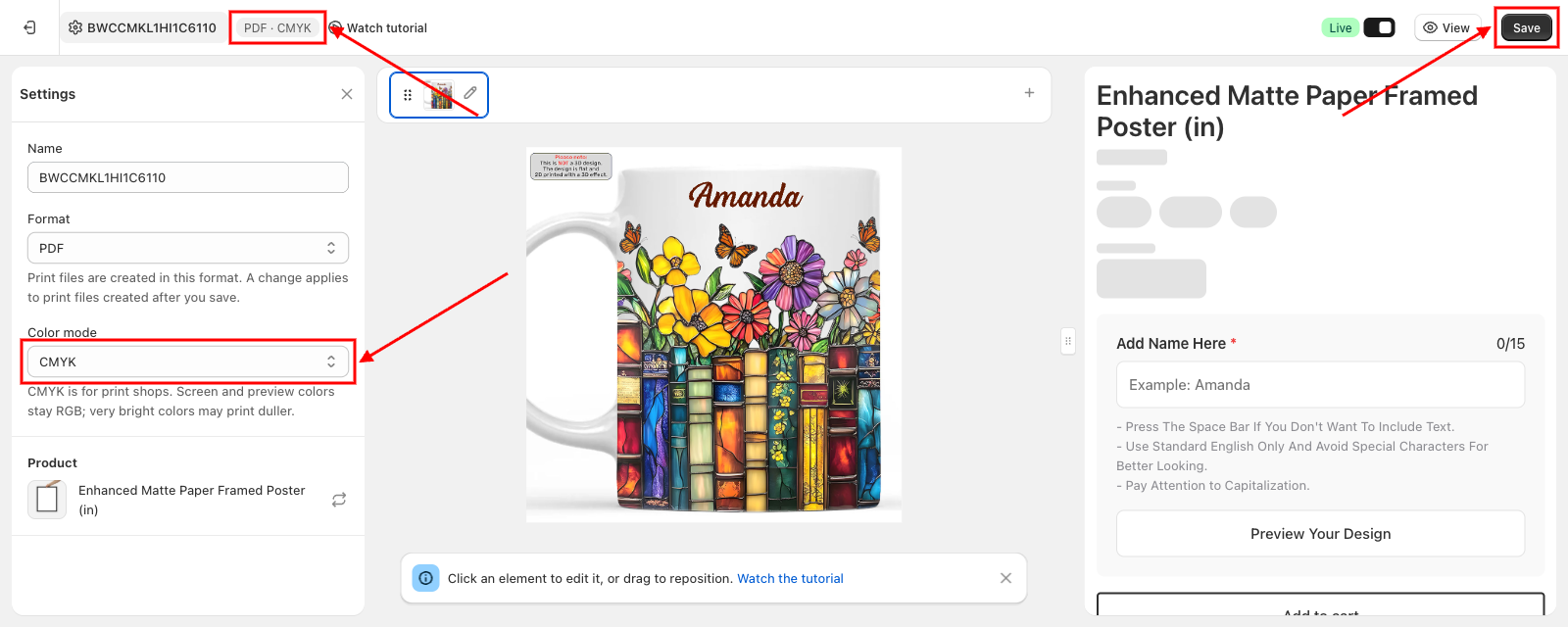
The Settings section controls the general details of the option set, including how its print files are created. To open it, click the option set's name, next to the gear icon, in the upper-left corner of the editor. The small badge beside the name shows the format the option set uses right now, and adds CMYK when CMYK is selected, for example PDF · CMYK.
- Format: the file type your print files are created in, sitting just below Name. Choose PNG, JPEG, PDF, EPS or AI. Defaults to PNG, and an option set that never had a format chosen is created as PNG.
- Color mode: the color system of your print files, sitting just below Format. Choose RGB or CMYK. Defaults to RGB. It only appears when Format is PDF, EPS or AI; PNG and JPEG files are always RGB, so the field is hidden for them.
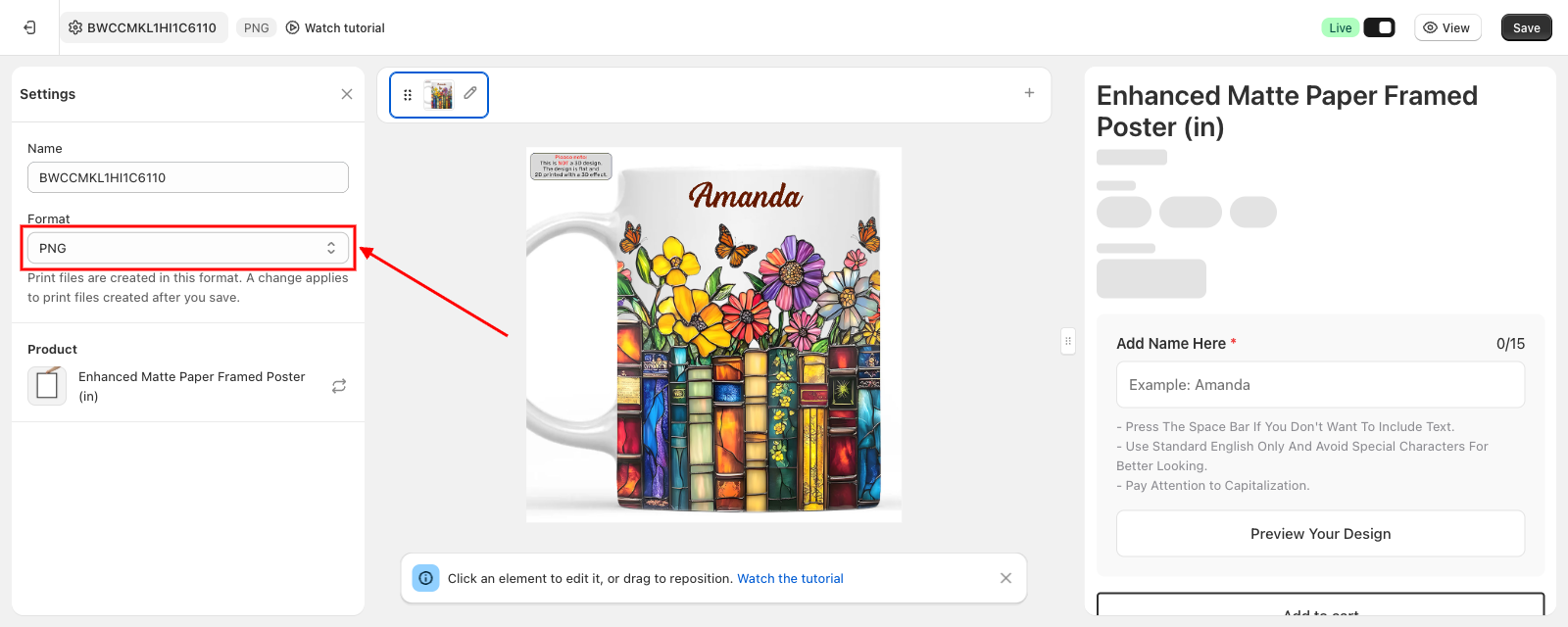
Change the Print File Format
Open the Format list and pick the file type you need, for example PDF. The badge next to the option set's name changes straight away, so you can always see which format is selected. With PDF, EPS or AI, the Color mode field appears below it. Then click Save in the upper-right corner. The new format is only kept once you save.
Create CMYK Print Files
Many print shops, especially offset, DTF and sublimation printers, ask for files in CMYK, the four ink colors used on the press. With PDF, EPS or AI selected under Format, open the Color mode list, pick CMYK, then click Save in the upper-right corner. The badge next to the option set's name now reads, for example, PDF · CMYK.
- What changes: every color in the print file, including uploaded photos and clipart, is converted to CMYK. Transparent areas stay transparent, and images keep their full resolution.
- What stays the same: your editor, the live preview and the product page still show colors on screen as before, because screens always display RGB.
- Very bright colors: some bright colors, such as neon greens, pinks and blues, can't be printed with CMYK inks and come out slightly duller. Pure black text becomes a rich black made from all four inks.
- Switching back to PNG or JPEG: the Color mode field disappears and your print files go back to RGB, because those file types are always RGB.
📌 Not sure which one you need? Ask your print provider. If they don't mention CMYK, keep RGB, which works with most printers and print-on-demand services.
Choosing a Format
Pick the format your printer or production software asks for. If you're not sure, ask your print provider which file type they accept.
- PNG: a high-quality image and the default for new option sets. Always RGB.
- JPEG: a smaller image file with no transparency, so it suits designs that fill the whole print area. Always RGB.
- PDF: a document file that most print shops and printing software can open. RGB or CMYK.
- EPS: a file for design and printing software that works with EPS files. RGB or CMYK.
- AI: a file meant for Adobe Illustrator. RGB or CMYK.
⚠️ EPS files can't keep partly transparent areas. Soft edges, shadows or faded images in your design come out either fully visible or fully hidden. If your design relies on them, choose PNG or PDF instead.
TODO: confirm how AI print files open in Adobe Illustrator for designs with gradients or text effects, and how CMYK AI files display there, before documenting any limits for the AI format.
When the New Settings Apply
- Only new print files change. The format and color mode apply to print files created after you save. Print files that were already created keep the format and colors they were made in, and still download as before.
- Each option set has its own settings. Changing the format or color mode of one option set doesn't change your other option sets.
- Nothing changes for your customers. These settings only affect the print files you receive. Your product page and the personalization your customers see stay the same.
You can download the print files for each order from the order's details page. See Order information for where to find them.
📌 Don't forget to click Save once you've picked a format and color mode. If you leave the editor without saving, the option set keeps its previous settings and your print files are created as before.
Updated on: 25/09/2026
Thank you!